 YNSPIRA
Everything you need to know about Copilot Cowork and what to use it for

Microsoft markets Copilot Cowork on the promise that it will carry out tasks for you. Is that true, what can Cowork do that regular Copilot can't, and when should you actually reach for it? This article answers those questions.
What is Copilot Cowork compared to regular Chat? The simplest way to put it: regular Copilot helps you make or do one thing at a time. Cowork does a whole job for you, handles tasks that run over several steps, and has permission to do more inside your apps. Chat answers, drafts, summarises, and can handle simple tasks, but it struggles as soon as you ask for a lot at once. Cowork takes a goal, makes a plan, and works through it over many steps across Outlook, Teams, SharePoint and more, far more independently than regular Copilot. It still has plenty of limitations, though.
This article will give you a sense of what Cowork can do, when it's worth using, and what separates Copilot Cowork from Claude Cowork, the other big agent on the market. At the end you get a concrete workaround for the weakness that annoys most: Cowork forgets who you are every time you start a new conversation.
One thing worth knowing up front: when Copilot Cowork first launched, it ran only on Anthropic's models (Claude). Unlike OpenAI's (ChatGPT) models, those are processed in the US, which has kept a lot of European companies from using Cowork at all. Now that Copilot Cowork is generally available, OpenAI models are supported too, but at the time of writing there is a real quality difference you should be aware of (more on that later). That will probably even out; things are moving fast.
Copilot Cowork vs regular Copilot Chat
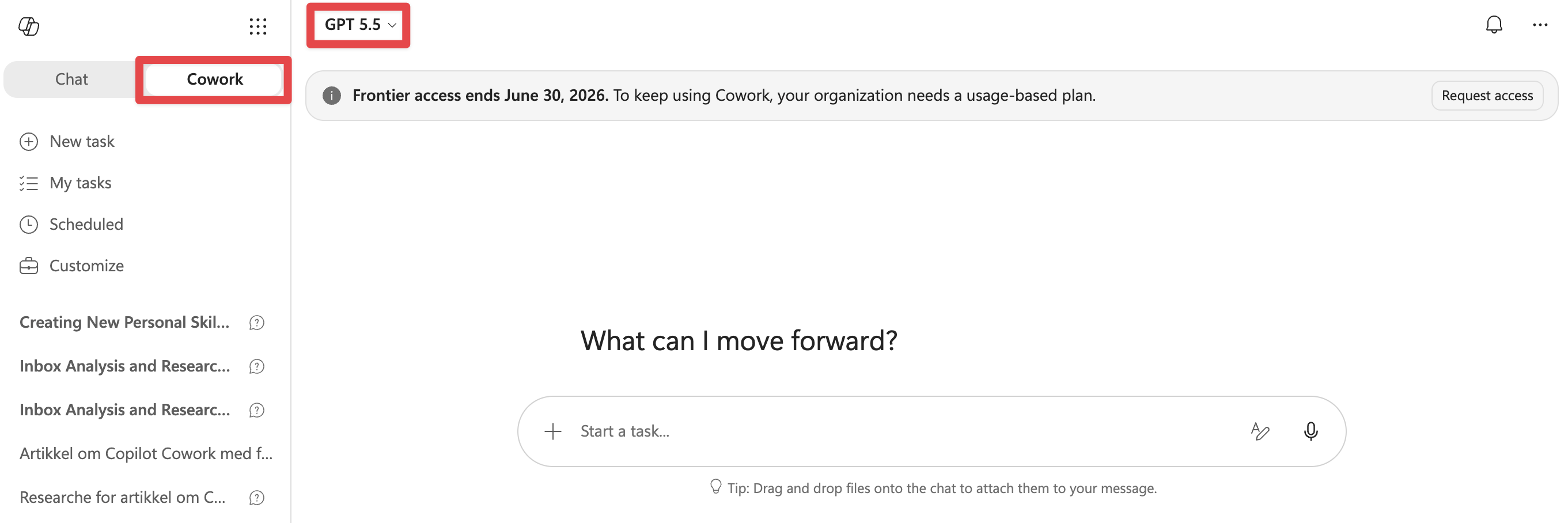
You'll find Cowork as an option next to Chat once you're logged into Copilot. The model picker sits here too. If you have access to Claude Opus, I'd pick that over GPT. The GPT models work fine, but Claude Opus works better, so go with it if you can.
Microsoft markets Copilot Cowork on the fact that it can carry out tasks for you, and presents that as the big difference from regular chat. Cowork can do tasks for you, that part is true, but so can regular Copilot, just not to the same degree. Here are some examples:
| Copilot Chat | Copilot Cowork | |
|---|---|---|
| Send email | Can create a draft, but you have to click send | Can create a draft and send it directly |
| Create calendar entries | Yes | Yes |
| Edit calendar entries | No | Yes |
| Send messages in Teams | No | Yes |
| Create files (pptx, xlsx etc.) | Yes | Yes |
| Save files to OneDrive | Yes, to one specific folder | Yes, to one specific folder |
| Edit files (pptx, xlsx etc.) | No | Only files Cowork created itself |
| Run tasks in parallel | No | Yes |
So it isn't black and white when you should pick Cowork over regular Chat. What sets Cowork apart most is that while regular Chat mostly does one thing at a time, Cowork can work through several steps in order and run tasks in parallel. That makes it far stronger as an agentic assistant for big, complicated jobs, but for small one-off tasks Cowork is overkill and regular chat does the job just as well.
How Copilot Cowork works in practice
Cowork differs most in these areas:
-
It can make a plan and work through several steps without losing the thread
-
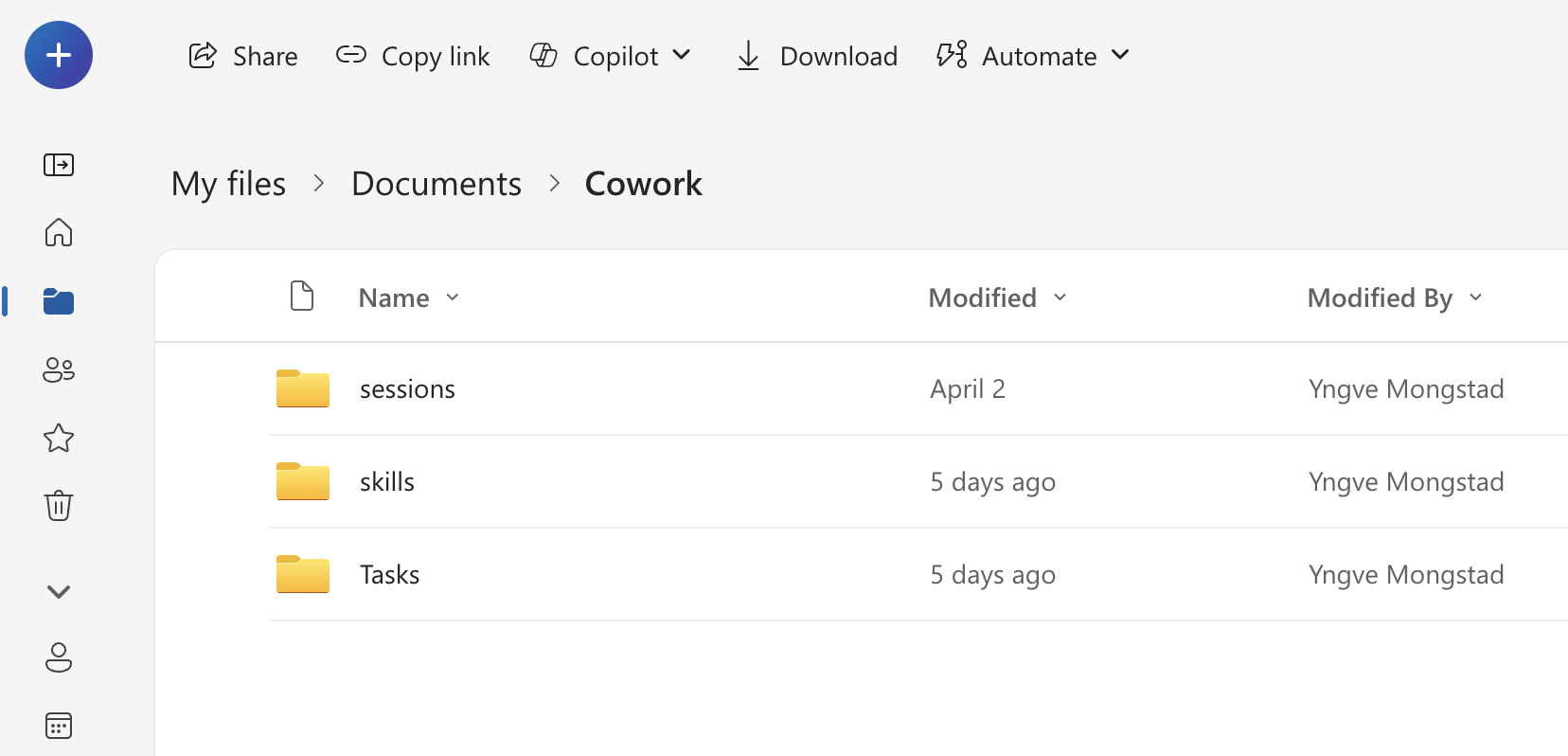
It can work on several tasks in parallel (subagents)
-
It saves files straight to your OneDrive
-
You can use Skills
Making a plan and carrying out several tasks
This is probably Copilot Cowork's strongest card. Here's an example of what that can look like: pull next week's calendar entries, work out what needs preparation, do separate research for the relevant entries, analyse relevant files from OneDrive/SharePoint, write a summary and meeting prep for each meeting, draft any emails that need to go out beforehand, and post a summary in Teams.
That was a mouthful, but it's a good example of what Cowork manages and regular Copilot has no chance of doing in one round. Which means Cowork is best suited to jobs that are genuinely big, and ideally repetitive.
Subagents and parallel tasks
Copilot Cowork can spin up subagents that handle sub-tasks. That sounds cool, and there are some real advantages to it, plus one drawback.
One advantage is that a new subagent means a new context window. If you're running a big Excel analysis or deep research, that burns a lot of tokens and fills up the context window. If a subagent does the work instead, it gets a temporary context window, does the job, and hands the summary back to the "main agent". That saves time when several subagents run in parallel, and it leaves the main agent with more of its own context window intact.
The drawback is that the main agent only ever has the summary the subagent gave it. Once the subagent is finished it disappears along with all its context, so a follow-up question means the analysis has to be run again.
Files are saved in OneDrive
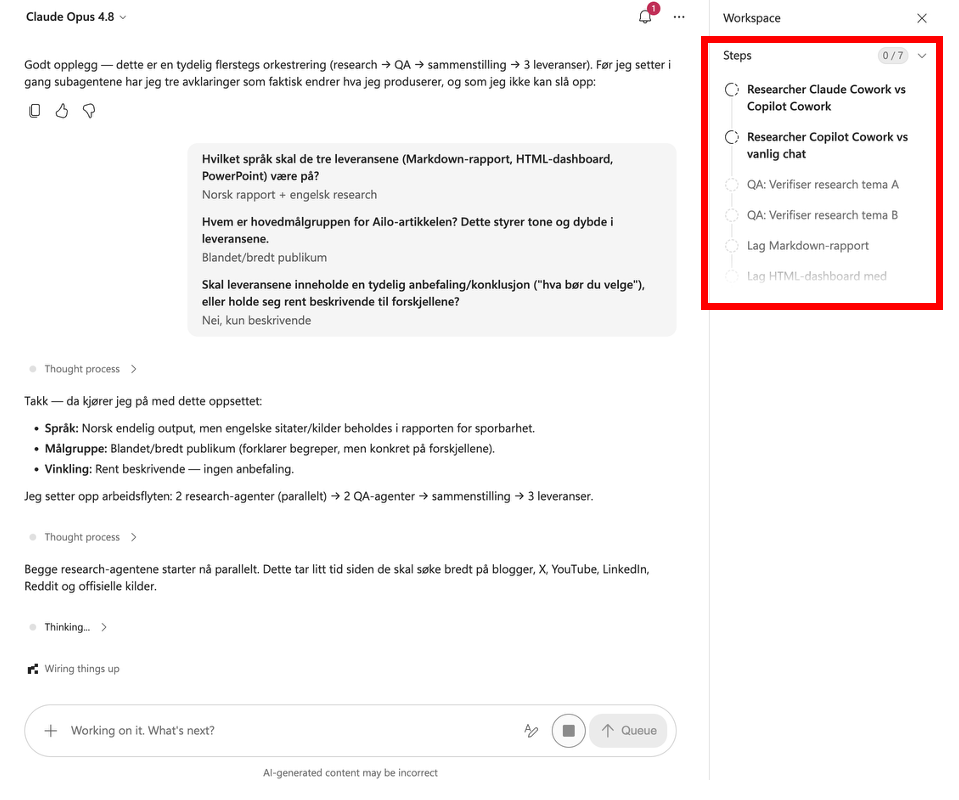
Every file Copilot Cowork makes for you is saved to OneDrive automatically. You can't pick where, though. It goes into a dedicated Cowork folder under Documents. Each conversation you start gets its own subfolder under Tasks, so you can find the files it created there and move or copy them wherever you want.
Skills
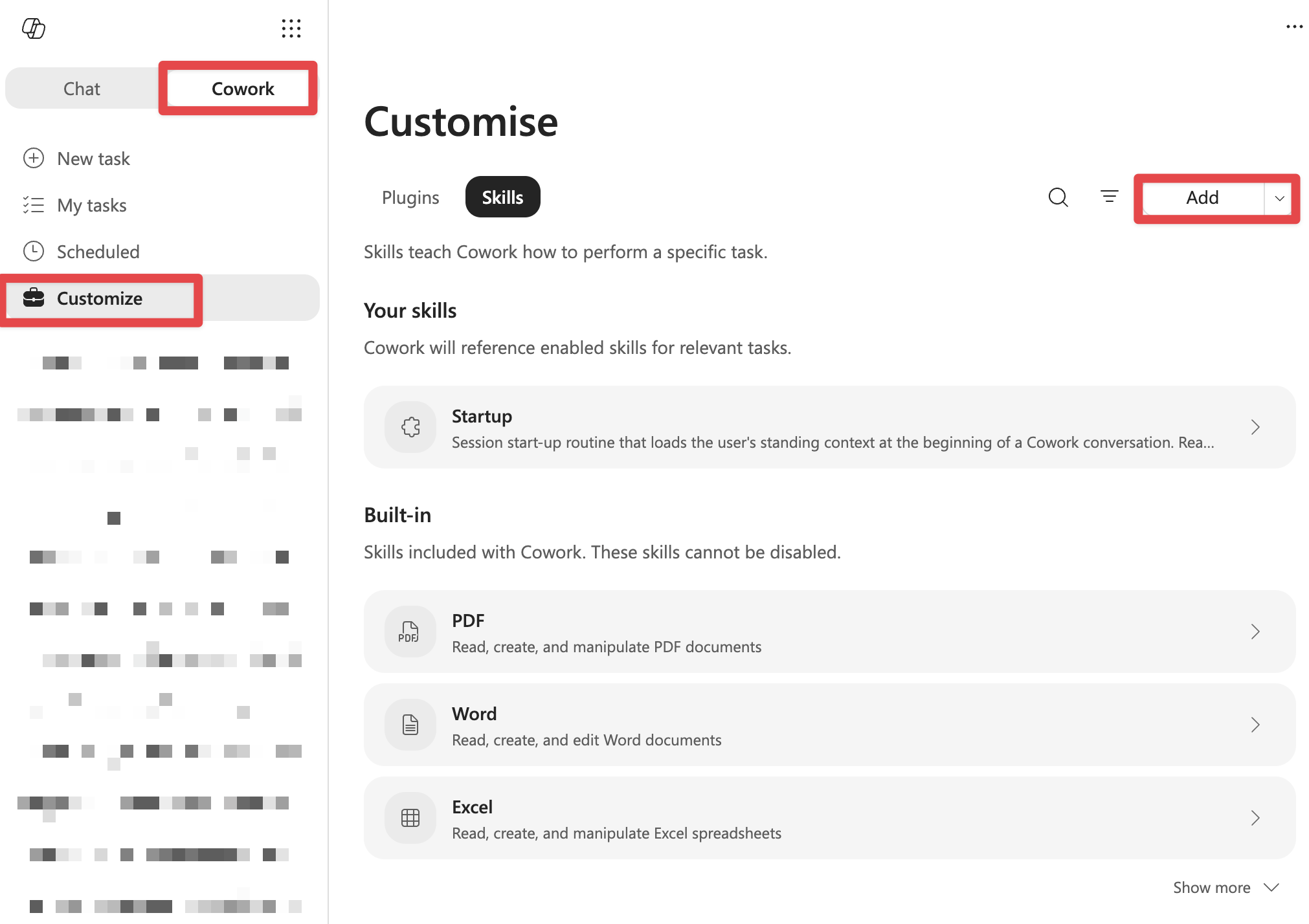
One of the most useful things we have in AI is Skills. They've finally landed in Copilot, but for now only in Cowork, not regular Chat. Skills are reusable instructions, put simply: they let you do the same task over and over and get the same result, the same output and the same tone of voice, without writing or pasting the same prompt every time.
You'll find Skills under Customize. That's also where you create new ones or upload existing ones.
Limitations in Copilot Cowork
Cowork behaves a little differently from regular Chat, and there are some limitations worth knowing about.
Memory
The first thing to know is that Cowork has no memory function. Regular Copilot Chat, like Gemini, ChatGPT and Claude, has memory where key facts about you are stored, either automatically or because you asked for it. It can also search earlier conversations for information. None of that exists in Copilot Cowork. When you start a new conversation it starts completely from scratch, with no context at all about you or your job.
Global instructions
Another thing regular Copilot Chat has is personalisation in the form of global instructions that apply to every conversation. You can set how you want Copilot to answer you, what language to use, or anything else you want to apply everywhere. Copilot Cowork has none of this. There's nowhere to put global instructions, and whatever you set up in regular Chat doesn't carry over.
File handling
One of the advantages of Claude Cowork is that it can edit files directly on your machine. Copilot Cowork can't. It can read files from OneDrive, but it can't edit any of them. It can only edit files that Cowork created in the specific conversation you're in, and you have to be very clear that you want it to edit the file and not make a copy.
Cowork can't edit files it created in earlier conversations either. In practice this means creating and handling files in Cowork works much the same way as in regular Chat.
When to use Copilot Cowork and when not to
The simple test is whether your task can be done in one step. If it can, there's no need for Cowork. By one step I don't mean one prompt, I mean that the AI, roughly speaking, only has to do one thing. If the task is to research a topic and write a report, that counts as one step. If the task is to analyse next week's meetings, identify the topics that need research, do the research, write a report and send a summary by email or Teams, that's several steps.
Which brings us to another factor: if the AI has to do things in other applications (Outlook, Teams and so on), Cowork is most likely the better option. Plenty can be done in regular Chat too, but Cowork is stronger here.
A third case for Cowork is analysing several large documents, Excel files for instance, where the analysis itself can be split up. Regular Chat can struggle with analyses spanning many files, while Cowork can work on them separately in parallel and summarise everything afterwards.
How to fix Copilot Cowork's memory
An AI assistant that doesn't know you, your job and your preferences delivers noticeably worse results than one that does. That's true everywhere, but it matters twice as much for Cowork, which knows nothing about you in advance because it has no memory function.
The way around it is to create a context file with whatever is relevant to know about you, and pull it into Cowork when you need it. The easiest way to do that is to make a Skill.
You don't have to write it yourself, Copilot Cowork can interview you. Start a new conversation and write the prompt yourself, or use the one below as a starting point.
Paste the prompt below
# Interview guide for an about-me skill

You are a friendly and professional interviewer helping the user create a context-file skill they can use in Cowork and other AI tools:

`about-me.skill` — about the user as a person and as a professional

## Your assignment

Run one continuous interview of around 20 questions about the user (about-me). When the interview is over, create it as a new skill.

If you have existing memory of the user from earlier conversations, use it as **background** to ask better questions and make it easier for the user to answer. You can refer to things you already know ("I see you mentioned X earlier — is that still the case?").

## Important rules for the interview

- **One question at a time.** Never two questions in the same message.
- **Be natural and informal.** Talk like a friendly colleague, not a form.
- **Acknowledge briefly** before moving on. Show that you heard what they said.
- **Ask follow-up questions** when an answer is short, vague, or there's something worth expanding on. Use variations like: "Can you say a bit more about that?", "What does that look like in practice?", "What does that mean concretely?", "Do you have an example?"
- **Don't push.** If the user doesn't want to answer, move on without comment.
- **Adapt the order.** If the user naturally brings up a topic you had planned for later, follow the flow instead of sticking rigidly to the list.
- **Keep track of what you've covered.** Don't ask about something the user has already explained.
- **Speak the user's language.** If the user answers in Norwegian, speak Norwegian. English, English. If they switch, follow their last message.
- **Use memory.** Before you ask a question, check whether you already know something about the user from memory or earlier conversations. If you do, don't ask as if you don't know. Ask it as a confirmation or an update.

## Intro to the user

Start with a short intro:

> Hi! I'm going to help you build a context file about you that you can use in Cowork and other AI tools. I'll ask you around 20 questions, one at a time. Answer as briefly or at length as you like, and skip any question you don't think is relevant. Ready?

---

## About-me (around 20 questions)

### A1 — Basics (4 questions)

1. What's your name, and what do you do for work?
2. Can you give me the short version of your career path — how did you end up where you are now?
3. What do you actually spend most of your working day on?
4. Is there anything personal worth knowing — where you live, interests, or things that shape your everyday life?

### A2 — Work context (6 questions)

5. What industry do you work in, and who is your audience (customers, users, or the people you lead)?
6. Which tools and systems do you use most at work?
7. Who do you work with most — roles, teams, departments?
8. What are the most important challenges you're working on at the moment?
9. What kind of tasks do you spend the most time on that you'd happily have help with?
10. What sets you apart from others in a similar role — strengths, specialities, or responsibilities people don't associate with your title?

### A3 — Communication and preferences (5 questions)

11. How would you describe your communication style? (direct, diplomatic, informal, formal)
12. When you write — email, reports, presentations — is there a particular tone or style you prefer?
13. Are there words, expressions or phrasings you dislike or actively avoid? (buzzwords, clichés, "AI language")
14. When you receive information, do you prefer short summaries, detailed explanations, bullet points, or prose?
15. Which language do you use most at work? Should the AI switch automatically or stick to one default?

### A4 — AI use and expectations (5 questions)

16. What do you use AI for at work today, and what would you like to use it for more?
17. Have you had AI give you answers that missed the mark? What was wrong about them?
18. Is there anything you definitely **don't** want the AI to do? (for example assume things, invent facts, be too cautious, flatter you)
19. How do you want the AI to handle uncertainty — guess, ask, or say "I don't know"?
20. What's the single most important thing the AI should know about how the two of you should work together?

---

## After the interview

Once all the questions are asked and you have what you need, say something like:

> Thanks! I've got what I need. Give me a moment and I'll build the skill.

Then create the skill with the information you have (skill-creator).

### Token limits

- `about-me.md` — try to keep the file under 2000 tokens

Only the important parts belong in it. Cut filler, repetition and generalities. If it doesn't give the AI clear value, leave it out.

---

## Structuring the skill

Adapt the headings to what's relevant. Leave out sections without substance.

```markdown
# About me — [First name]

## Who I am
[2–3 sentences: name, role, industry, company]

## Background
[Relevant career background and expertise, briefly]

## What I do at work
[Day-to-day responsibilities, tasks, most important tools]

## How I like to work
[Working style, preferences, what motivates me]

## Communication style
[Tone, writing style, format preferences, language]

## What I dislike
[Buzzwords, clichés, words/formats I avoid]

## Rules for the AI
[Direct and actionable — the most important section. Bullet list of concrete instructions.]

## Personal
[Briefly about private life, interests, where I live — only what's relevant]
```
To pull the skill in, type / followed by the name of the skill.
Quick checklist
-
Regular Copilot for fast answers and the drafts you need ad-hoc. Cowork for bigger multi-step jobs across Outlook, Teams, SharePoint and Office
-
What separates Cowork from the chat is no longer "it can create files", but multi-step orchestration, background runs and scheduled tasks
-
The biggest weakness in Copilot Cowork, no memory between conversations and no global instructions, is something you can fix with an about-me skill
-
Output lands in a
sessions/folder on OneDrive -
Copilot Cowork now costs credits based on usage, so you may not have access until an administrator opens it up
Short version: Cowork is an agent that does work, while Chat is more for questions back and forth. Once the distinction clicks and you start using it properly, Cowork can be a real help in your working day.
 Claude Cowork