 YNSPIRA
How to create a presentation with Claude Cowork and Gamma

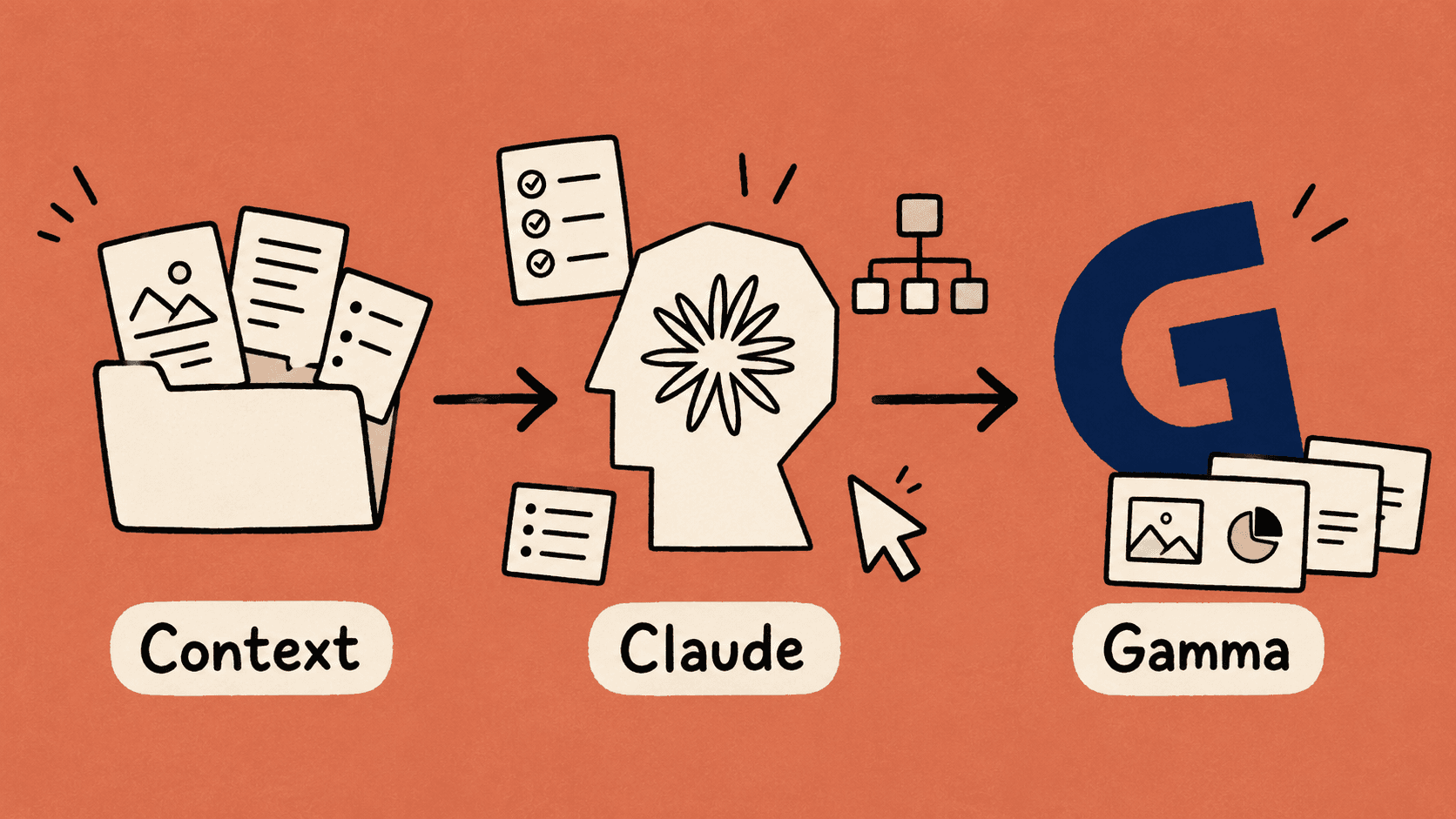
There are plenty of guides and examples out there showing how to get AI to build a presentation based on a topic it researches for you. I don't find that very useful. I have never personally needed to make a presentation based purely on web research. A presentation always needs to draw on context and existing files you already have.
You usually have files lying around — earlier workshops, notes, client context, a project mandate, internal documents, or your own experience — that the presentation has to build on. This is exactly where the combination of Claude Cowork and Gamma comes in handy. And in this guide you'll learn how to do it yourself.
Claude Cowork does the groundwork: reading files, understanding context, doing research, structuring content, and putting together a solid starting point. Gamma then turns that into a finished visual presentation, which ends up more or less ready to use if the groundwork is done right.
This guide walks through a practical workflow with example prompts you can try yourself.
What the process involves
The workflow has three main parts:
- First, Claude Cowork builds a source file based on your files and web research
- Then that source is used to create a clear slide structure
- Finally, the structure is handed over to Gamma, which builds the actual presentation
The point is to not ask the AI to make the whole presentation in one go. That can feel faster, but the result tends to be more hit-or-miss, and you end up spending more time fixing things in Gamma afterwards. By splitting the process into steps, Claude gets one clear task at a time, and you keep better control over the content before it becomes slides.
What you need before you start
Before you begin you'll need:
- Claude Cowork set up on your machine (you need a Pro subscription or higher)
- A Gamma account (you can start for free)
- A clear idea of the topic and audience for the presentation
- Relevant background documents for the topic you've chosen
- Gamma activated as a connector in Claude
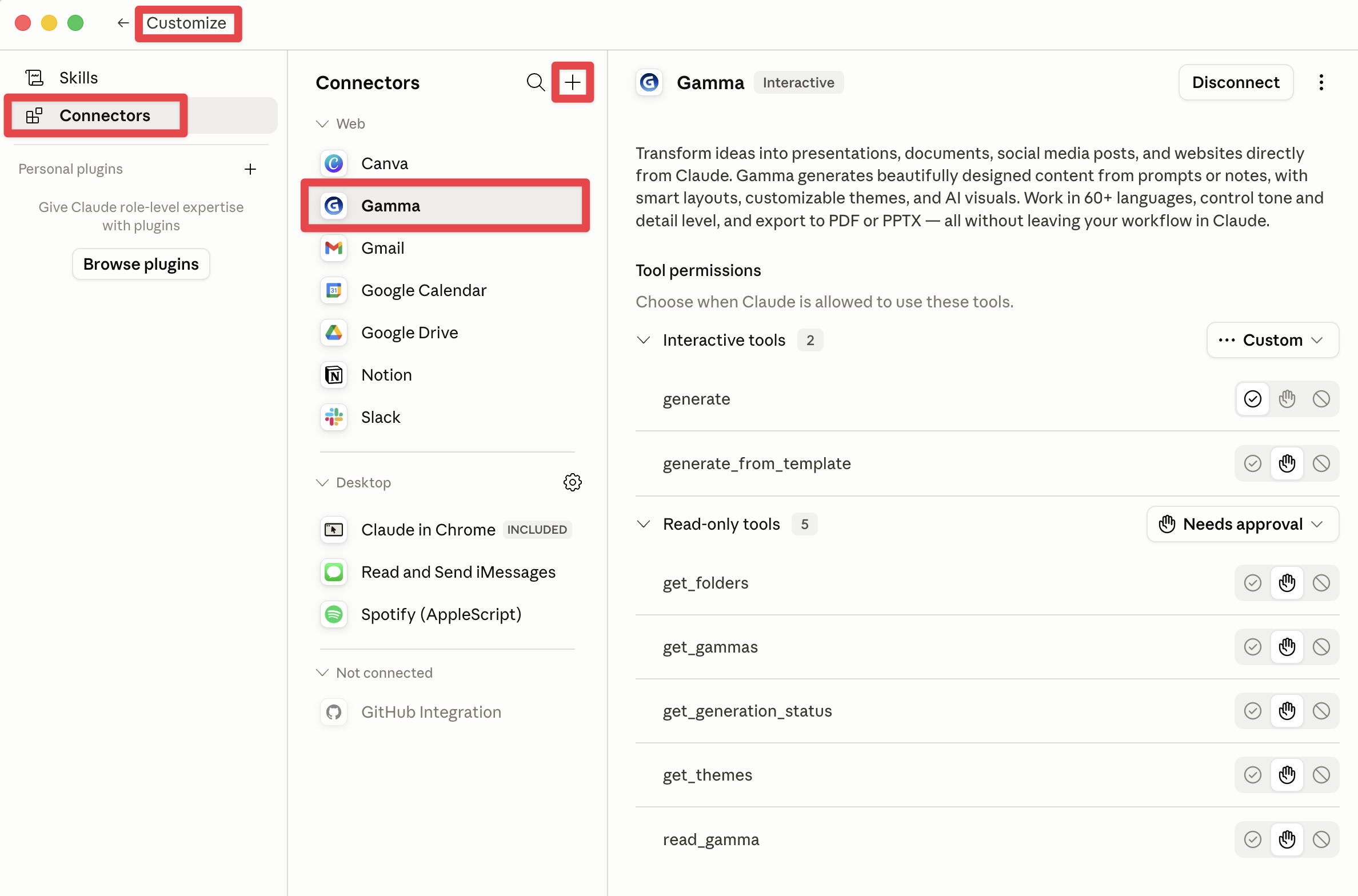
To connect Gamma to Claude, select "Customize" in the right-hand column (either on the web or in the Claude app), then choose Connectors and add Gamma by clicking the plus sign.
In my example, I'm making a presentation about Claude Skills for a specific client, where the content is tailored to that client's project mandate and the workshops we've already run, so the presentation fits the actual audience, their field, their industry, and what we've covered before. The result is something completely different from just asking the AI to make a presentation about Claude Skills based only on web research.
Step 1: Create a dedicated project folder
Start by making a separate folder for the presentation on your machine. In Claude Cowork you work in specific folders. That makes it safer, since you always know which files Cowork has access to.
Want to read the full article?
Sign in or create a free account to continue.
No trial, no credit card, no mandatory newsletter.
 Claude Cowork