 YNSPIRA
How to set up Claude Projects properly

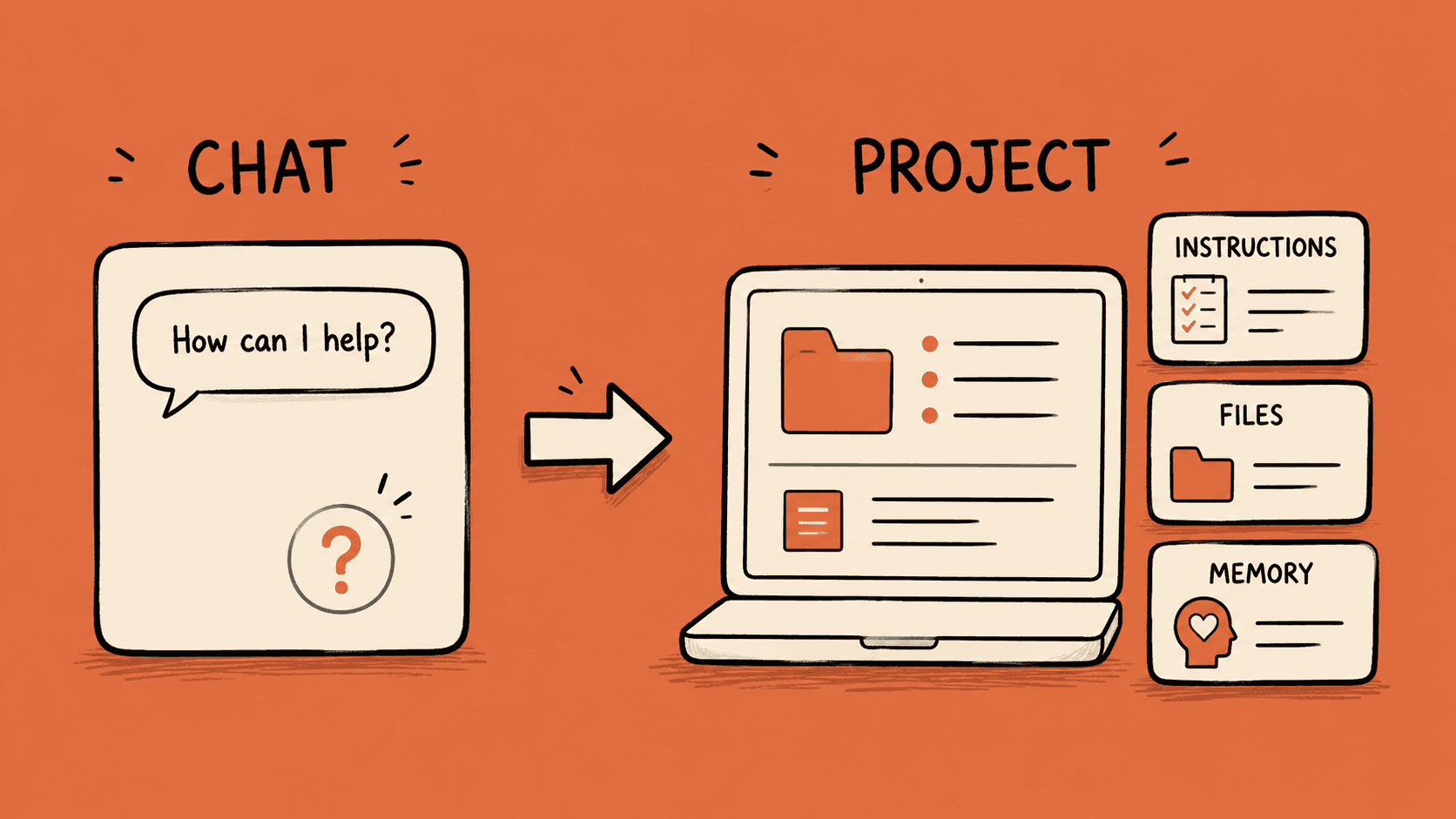
The difference between Claude as a chat partner and Claude as a work partner starts with Projects.
Without Projects, Claude starts from zero in every conversation. It has generic memory, but no idea what you're working on, what you've done before, or how you like things done. It's like onboarding a new colleague over and over again.
With Projects, you give Claude lasting context. Documents, instructions, preferences. Everything that stops Claude from guessing and stops you from repeating yourself. Projects works well for actual projects, but it also works surprisingly well for recurring tasks that aren't really "projects" in the traditional sense.
Most people who try Projects set them up wrong. Instructions that are way too long, the wrong files, everything dumped into one project. This guide shows you how to do it right.
What a project is made of
A Claude project has three parts:
Instructions. Rules Claude follows in every conversation inside the project. Who you are, what tone you prefer, what Claude should and shouldn't do.
Knowledge base. Files you upload: documents, templates, reports, style guides. Claude has access to them in every conversation without you having to upload them again.
Memory. Claude learns over time. It picks up patterns from your conversations and remembers preferences, decisions, and context between sessions. Memory is separate for each project. General Claude memory does not carry over into a project (unlike Projects in ChatGPT). You start from scratch in a new Claude project.
All three parts share the same 200,000 token context window (roughly 500 pages of text). So the more you fill up with files and instructions, the less room there is for the actual conversation. On paid plans, Claude automatically switches on intelligent retrieval (RAG) when you get close to the limit.
Step 1: Pick the right scope for the project
The most common mistake is making one giant project for everything. If it's genuinely a project where Claude is helping as a kind of project coordinator, then yes, one project usually makes sense. But for other kinds of work, it's not always obvious.
Ask yourself three questions about the task:
- Does it always produce the same type of output?
- Does it always follow the same process, guidelines, or rules?
- Do you have relevant supporting documents or knowledge files for the task?
If the answer is yes to all three, it's one project. If not, split it up.
Examples:
- Email and communication: one project. Same tone, same recipients, same context.
- Quarterly reports: one project. Same template, same KPIs, same format.
- Blog posts: one project. Same writing style, same audience, same guidelines.
- Client work: one project per client. Each client has its own context, documents, and rules.
Separating projects for different kinds of tasks is usually a benefit, not a drawback. Each project gets its own memory, with no bleed-over into others.
Step 2: Pick the right files
The knowledge base is where you put documents Claude should have access to. But "upload everything" is the wrong strategy. Files eat context, and irrelevant context makes answers worse, not better.
Use descriptive filenames. Claude uses filenames to find the right information, especially with RAG. "report-q4-2025-sales.pdf" is much better than "document1.pdf".
Choose the right files. Upload what's directly relevant to the task. Not your entire codebase or every report you've ever written.
Prefer Markdown and plain text over PDF. Markdown and plain text generally use less space in the context window than HTML (which has extra overhead from tags). PDF works fine, but can have formatting issues with complex layouts. PowerPoint presentations can't be uploaded to the knowledge base at all (convert them to PDF first).
Remove outdated files. If a Q2 report has been replaced by Q3, delete the old one. Outdated context gives you outdated answers.
30 MB max per file. That's the technical limit. But in practice, the context window is the real bottleneck, not file size.
Step 3: Write the instructions
This is where most people go wrong. They write either too much (1000+ words of context Claude doesn't need), too little (just one sentence), or nothing at all. Anthropic puts it simply: "Keep instructions concise. Use them for general context, guidelines, and Claude's role."
Good instructions can be broken into four parts:
1. What this project is (1-2 sentences)
Start with context. Claude needs to know what it's working on.
"This project is for monthly sales reports to the leadership team. The data comes from Excel exports from the CRM."
2. Rules Claude should follow
Be specific. "Write well" is too vague. "Write in English, use active sentences, max three paragraphs per section" is something Claude can actually follow.
3. What Claude should NOT do
This is surprisingly important. Especially if you keep getting answers you're not happy with.
Examples: "Don't start with a summary of what I asked for. Don't use bullet points unless I ask for them. Don't give generic advice when project-specific guidance exists."
4. Files attached to the project
To make it easier for Claude to find the right file, it helps to include an overview of what each file contains.
Tip: you don't have to write the instructions yourself from scratch. Claude can help you get started. Create the project, upload the files you want, and paste in this prompt:
Example: Getting Claude to help draft the instructions
I just created this project and need help writing instructions. Read all the files in the project and summarize what's here, then write instructions with the following structure:

1. What this project is and what it's used for (1-2 sentences)
2. Rules: which rules and guidelines you should follow
3. What you should NOT do
4. Files: a list of all the files with one sentence on what each contains

Use AskUserQuestion to ask follow-ups until you have enough information to produce a finished draft of the project instructions.
Step 4: Use Memory actively
Memory is different from conversation history. Memory is Claude's summary of patterns and preferences pulled from your conversations, not a full transcript.
You can control Memory directly: say "remember that we always format reports with this structure" and Claude saves it. You can also edit memory manually by clicking the Memory section in the top right when you're inside the project.
- Tell Claude what to remember. Don't wait for it to pick things up on its own. Be explicit.
- Check Memory now and then. Go in and clear out anything outdated. Claude may have held onto something you said early on that no longer applies.
- Each project has its own Memory. What you tell Claude in one project doesn't affect another. That's deliberate.
- Projects don't inherit Memory from outside the project: if you have "global" Memory turned on in Claude, it remembers things about you in regular chat, but none of that carries into a project. Every new project starts with a blank slate.
Step 5: Update after a few conversations
Your instructions won't be perfect from the start. After 3-5 conversations, you'll have enough experience to see what's missing and what's unnecessary.
Ask yourself as you go:
- Am I repeating something in every conversation that should live in the instructions?
- Is Claude doing something annoying that a "do not" rule would fix?
- Are there instructions Claude ignores because they're too vague?
Update, and do it regularly. Block out five minutes every other week.
The most common mistakes, summarized
- One project for everything. Split it up. One project per task type.
- Instructions that are too long. Keep it short. Put the detail in files, not in the instructions field.
- Only positive instructions. Also say what Claude should NOT do.
- Irrelevant files. Be selective about the knowledge base. Quality beats quantity.
- Never updating. Instructions need maintenance, like everything else.
- Using regular chat instead of Projects. If you're going to come back to the work, use a project.
Get started in 10 minutes
- Pick one task you do at least weekly
- Create a project with a descriptive name
- Upload 1-3 files that are relevant (templates, examples, reference material)
- Write 5-10 lines of instructions: what the project is, 2-3 rules, 2-3 "do not" rules
- Start a conversation and see the difference
The gap between a Claude that starts from zero and a Claude that knows your context is immediate. You feel it from the first answer. And after a few conversations, once Memory has started picking up your patterns, it feels more like a colleague than a tool.
 Claude Projects