 YNSPIRA
Copilot Notebooks: better than you think, as long as you avoid the classic mistakes


A short intro to the tool and 5 decisions to make when setting up your notebook.
Copilot Notebooks is easy to fall for, as long as you use it the right way (and trust me, I rarely say that about Microsoft Copilot).
A lot of people try Copilot Notebooks for the first time and use it badly. They stuff a notebook with low-quality sources, skip the instructions field, or mix several projects into the same notebook. Then they decide the tool wasn't worth their time.
This guide is meant to show you how to use it properly so you actually get value out of it and don't miss what it can do.
I'll start with a short, practical intro to the most important features in Copilot Notebooks. Then I'll walk through 5 decisions you should make when setting up a notebook. At the end, I sum up the most common mistakes to avoid.
What is Copilot Notebooks and how is it built?
Microsoft describes the tool as "an AI-powered workspace where you can collect content and sources so Copilot can understand the full picture and give you more relevant, context-aware answers."
Consider creating a notebook when you or your team will be working on a topic, a project, or a subject area over a longer period. Copilot Notebooks is especially useful if you want to go deeper into the sources, spot connections or patterns you haven't seen before, or simply want Copilot Chat to answer based only on the sources you've added.
Heads up: Copilot Notebooks does not yet support external sharing. You can only share a notebook with people in your own organization.
Where do you find Copilot Notebooks?
You'll find it in:
- Copilot in the browser at m365.cloud.microsoft
- The Copilot desktop app. IMPORTANT! Microsoft is gradually rolling out an updated Copilot experience. Your interface may look different depending on whether you're on the old version or the new one.
Variant A: How to get to Notebooks in the old version:
- Look for "Notebooks" in the left-hand menu in Copilot.
- Click the "+" symbol to create a new notebook.
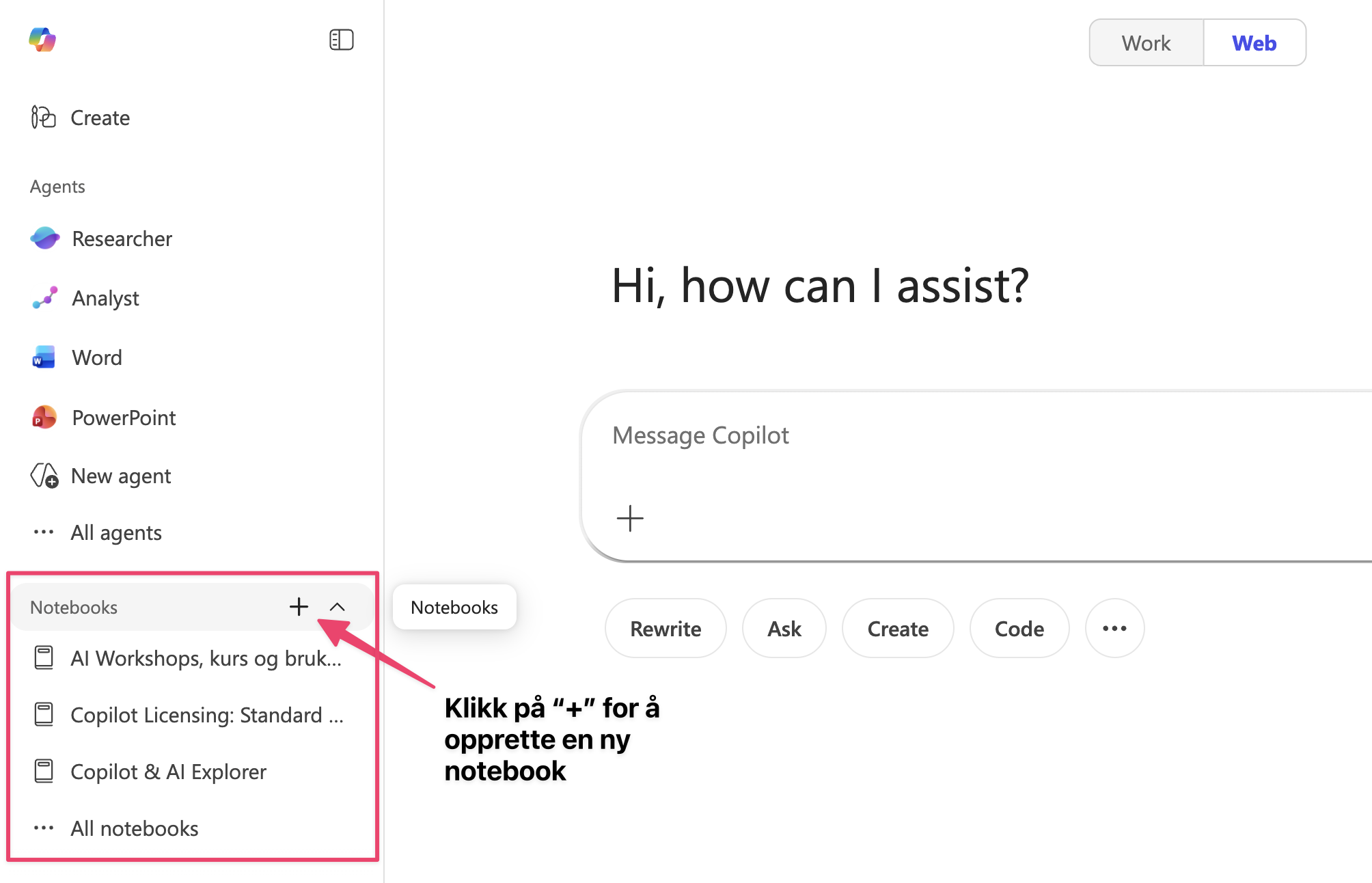
Variant B: How to get to Notebooks in the new version:
- Click the "waffle menu" in the top left, then "Notebooks".
- Click "+ New notebook" to create a new notebook.
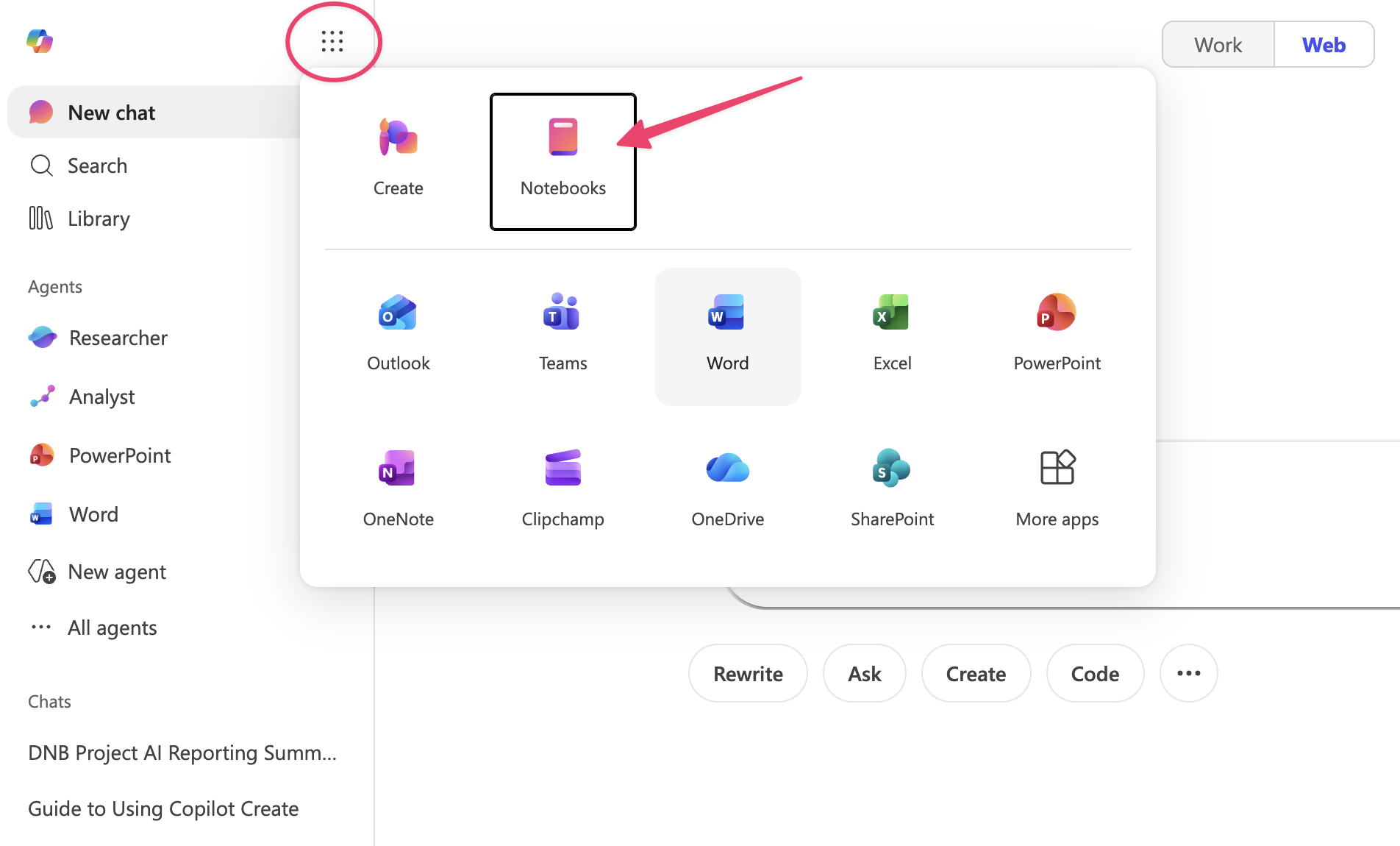
What are the main parts of a notebook?
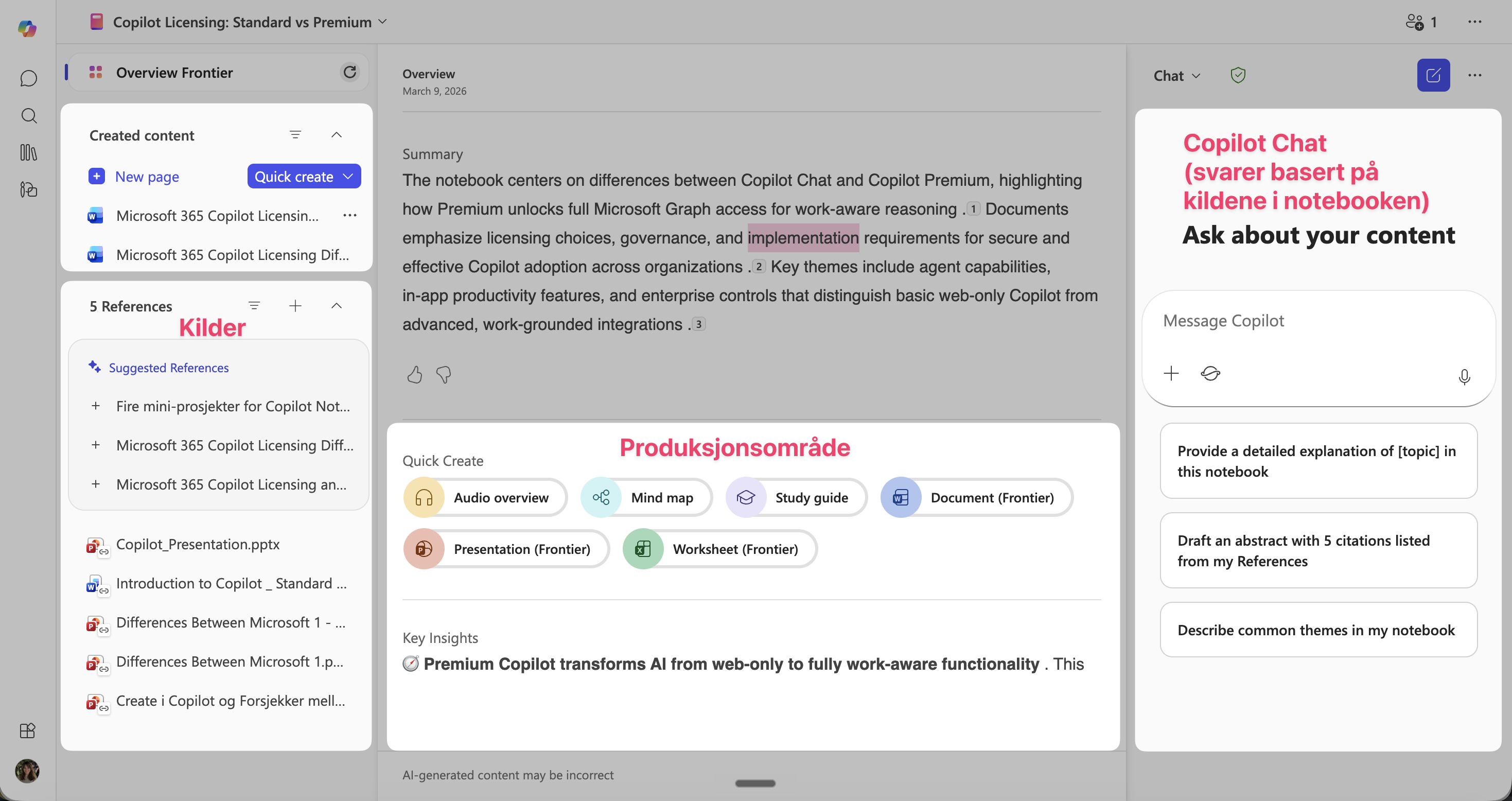
The notebook interface has three main areas:
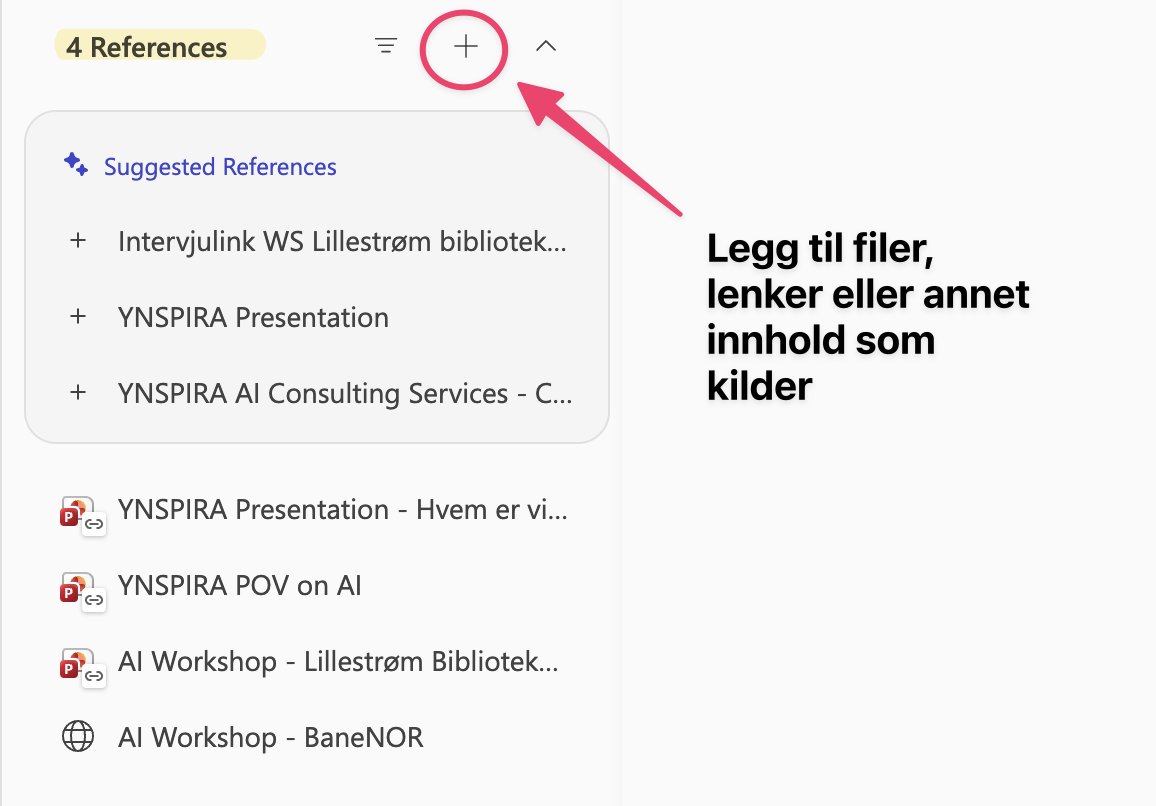
1. Left side – where you add and manage sources.
What can you add as sources? Files, links, and other content like emails, Teams meetings, entire SharePoint sites, and regular web pages.
Heads up: what you produce also ends up in the left column (above the sources).
2. Middle area – your production space.
Here you can quickly create Word documents, presentations, audio summaries, mind maps, and more, based on your sources. You click the format you want and Copilot generates a draft for you. Obviously, what you make here shouldn't be treated as a finished deliverable. Think of it as a draft to keep working on.
3. Right side – the Copilot chat tied to this particular notebook.
This is where you ask questions about the content in your notebook. The Copilot chat only answers based on the sources you (or your colleagues) have added to the notebook.
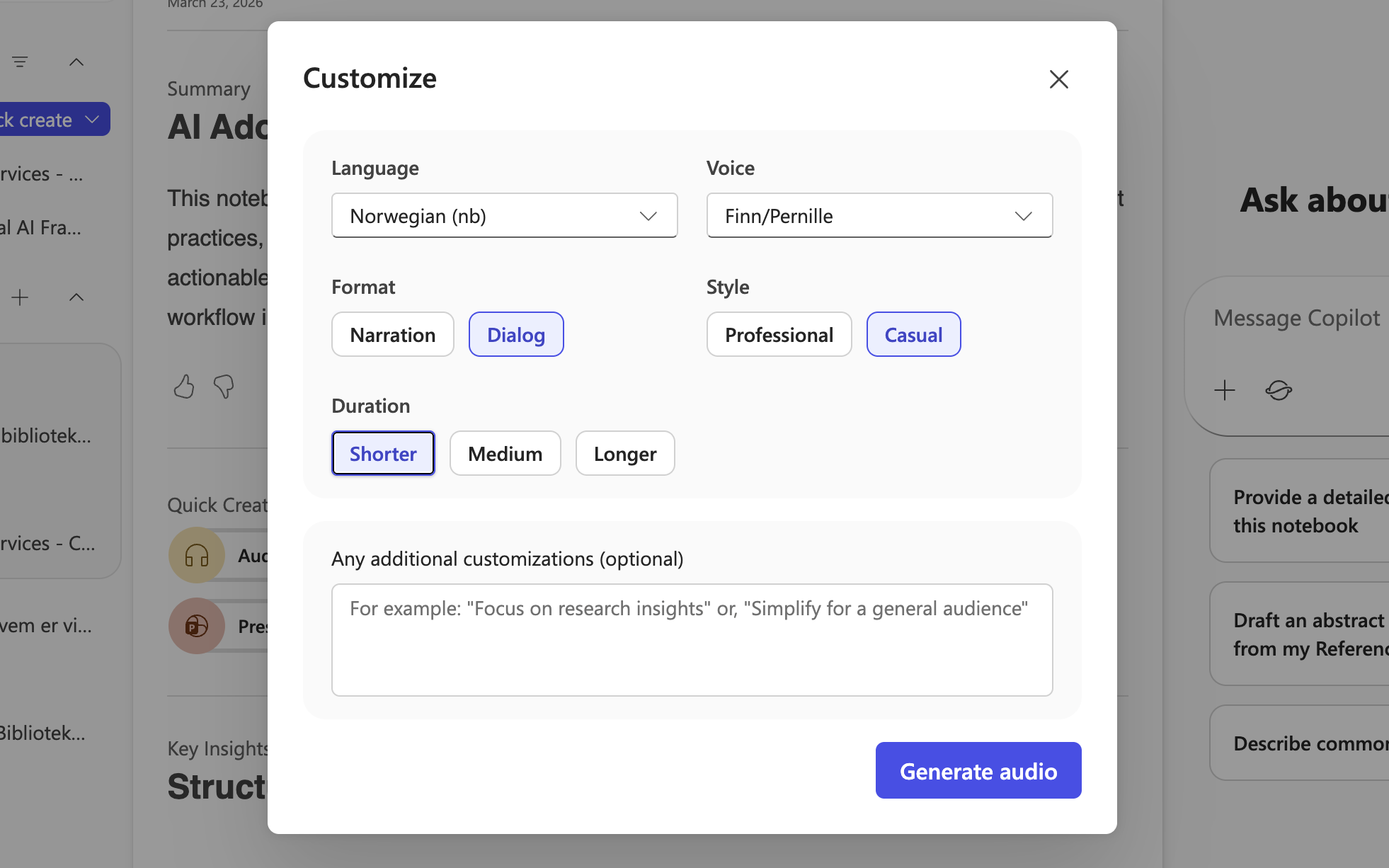
For some formats (like audio summaries and study guides) you also get a small pop-up where you can tweak the style, length, or other details before Copilot starts.
5 things to think through to set up your notebook right
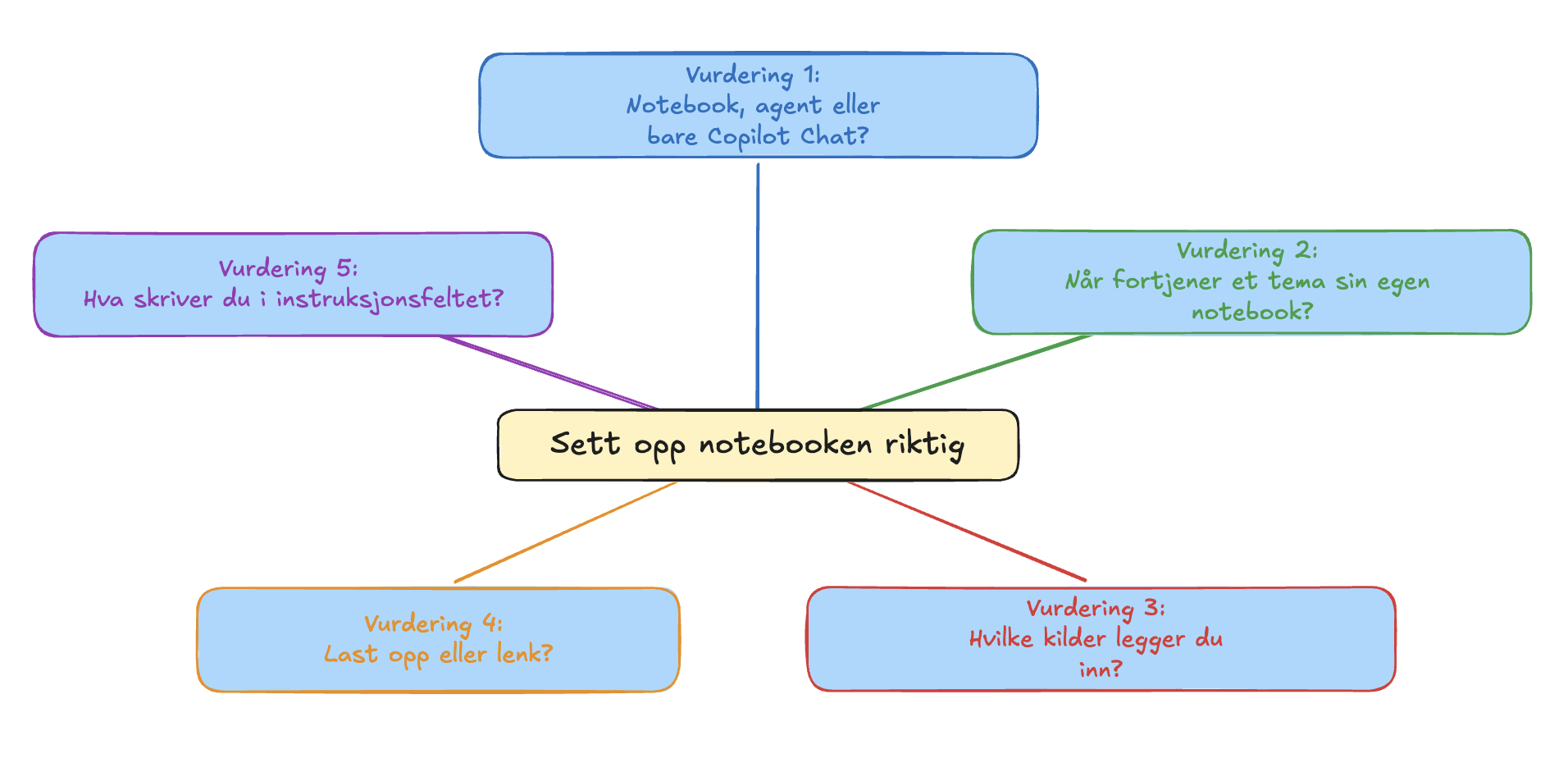
Decision 1: Notebook, agent, or just Copilot Chat?
At first glance, a Copilot notebook can look a bit like a simple chatbot agent. It has custom instructions and access to a chosen set of sources. If you're not sure whether you should build a notebook, an agent, or just use regular Copilot Chat, the table below works as a quick cheat sheet.
| Tool | Use it when... | Comment |
|---|---|---|
| Copilot Chat | You're working ad hoc, don't have a fixed set of sources, and won't come back to the same topic later. | No setup, no maintenance. |
| Copilot Notebook | You or your team will be working on a topic over time, you have a curated set of sources, and you want more insight or to produce something concrete. | Living: you tweak the sources and build on the content over time. |
| Copilot Agent | You want to build a tool that lots of other people will use, e.g. an HR assistant that answers the same questions over and over. | Static: built once, published, used by others. |
Decision 2: When does a topic deserve its own notebook?
Not everything deserves a notebook. Setting one up properly takes time, so if you're only going to work on a question for a few hours, regular Copilot Chat is usually enough.
Ask yourself three questions:
- Will you be working on this over time (at least a few days)?
- Do you have 3 or more relevant sources that naturally belong together?
- Are you going to produce something concrete (a draft, a summary, a presentation, an analysis), not just ask questions? If you answer yes to all three, that's a sign you should consider building a notebook.
The most common mistake here: building one giant "everything" notebook and using it for all sorts of unrelated things. Copilot Notebooks isn't designed to be a personal favorites folder across different topics.
The all-in-one approach makes it really hard to get precise answers in the chat, and almost impossible to write good instructions.
Rule of thumb: One notebook = one topic, one project, or one subject area.
Decision 3: Which sources do you add?
This is probably the most important decision in the whole setup. The quality of what you get out depends entirely on what you put in.
It's tempting to just add an entire SharePoint site (all the relevant files are already there, right? 😉). Or to throw in lots of files, meeting notes, and web pages that look somewhat relevant.
Don't. The more overlapping, outdated, or half-relevant files you add, the more confused Copilot gets, and the worse the answers you'll get.
Be extremely picky about which sources you add.
It's fine to add many sources, or even connect a whole SharePoint site, as long as the data quality is high. In particular, stay away from sources that contain partly outdated information or multiple versions of the same file.
Decision 4: Upload or link?
Small decision, big consequences.
If you link to a SharePoint or OneDrive file, the file stays live. The content in your notebook updates if someone changes the file in its original location.
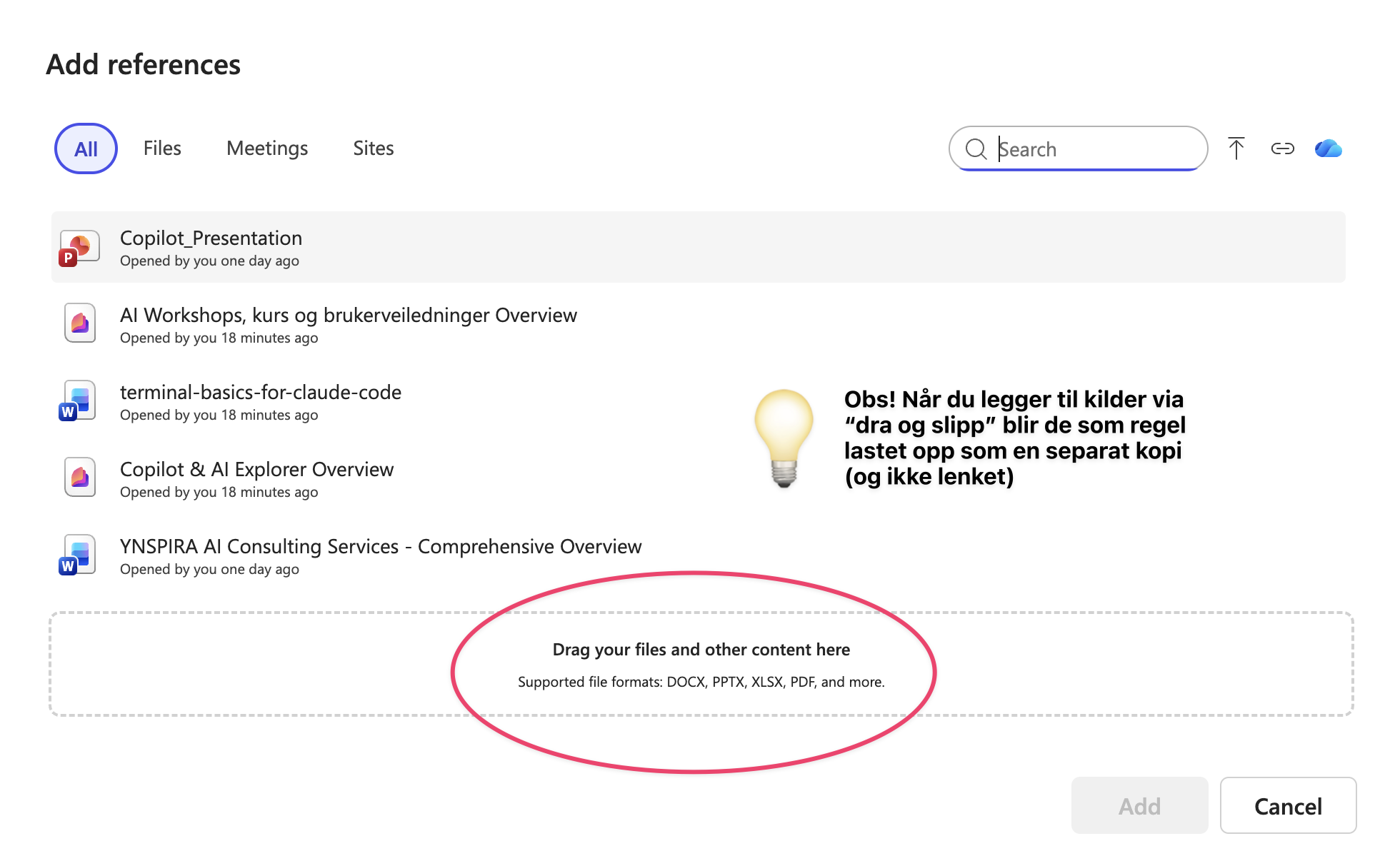
If you upload a file instead (for example by dragging and dropping), you're really making a separate copy of the file that "lives" inside your notebook. It doesn't update when the original changes.
Pay extra attention to this when adding new sources, so you don't end up working with files that are out of date without realizing it.
Decision 5: What do you write in the instructions field?
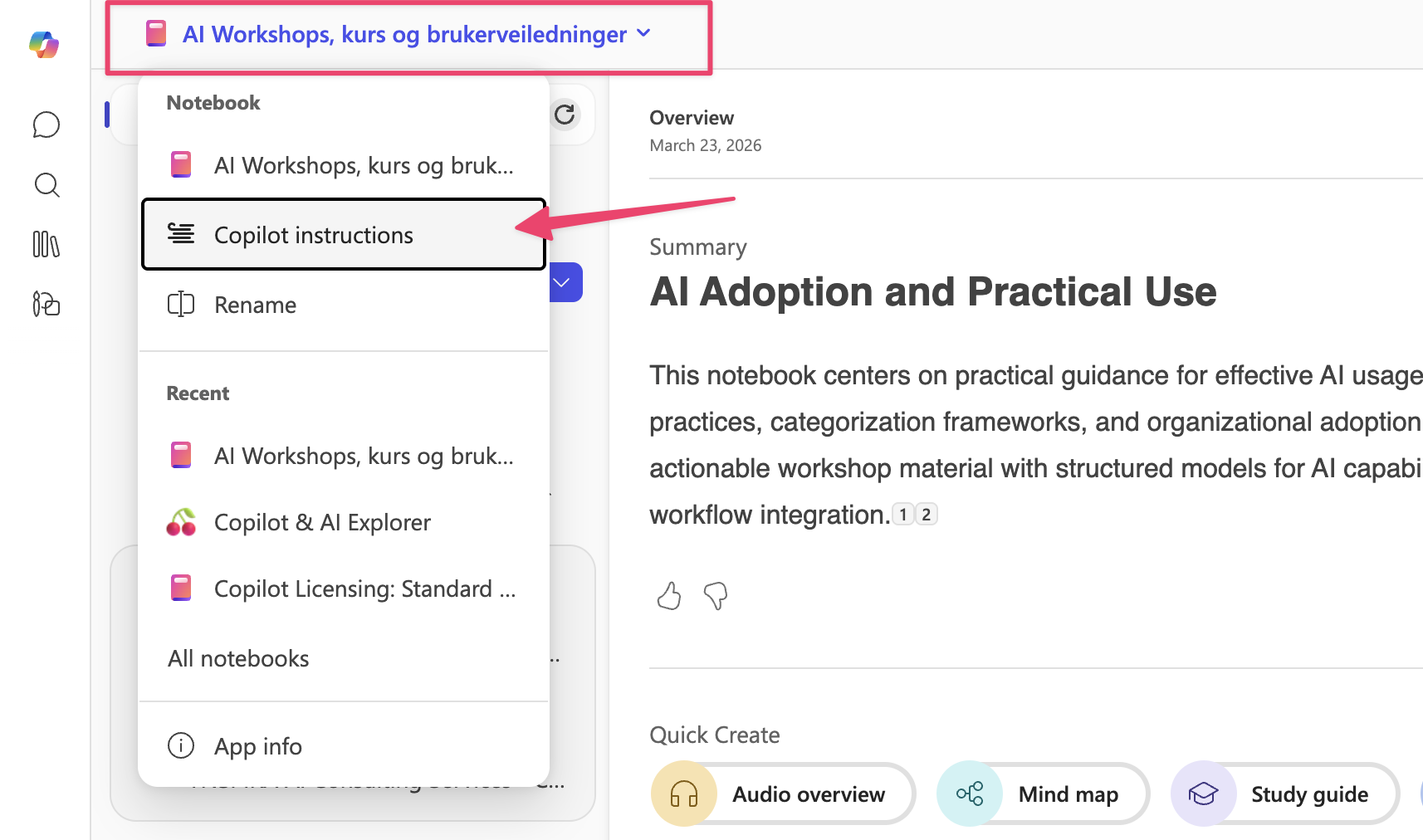
A lot of people skip the instructions field or simply don't know it's there. Without instructions, Copilot makes random calls about tone, length, and format. Those generic choices don't always match what YOU want from your notebook. So it's worth spending a few minutes writing some sentences and rules into the instructions.
You find the instructions field by clicking the notebook name in the top left.
A good instruction should say:
- What this notebook is about / what its purpose is
- Who the audience for what you produce is
- The tone, style, and format you want
- Any other rules, wishes, or preferences you want Copilot to follow in the notebook
- Optionally: what Copilot should NOT do Remember that it usually works better to have several positive rules (what the AI should do, and how) than negative ones.
You're not going to set up your notebook perfectly on the first try. And that's fine.
Remember to adjust the instructions and your sources as you figure out what you actually need.
- Are there files that never seem to get referenced in the answers? Consider removing them.
- Is there something you keep repeating in chat messages that really belongs in the instructions?
- Or is Copilot doing something annoying that you should add as a fixed "do not" rule in the instructions?
The most common mistakes, summed up
One notebook for everything. Split it up: one topic, one project, or one role per notebook.
Too many small notebooks with 1-2 sources each. A notebook pays off when you keep coming back to it. Otherwise you're better off with regular Copilot Chat.
Too many sources, or low-quality sources. Be selective and deliberate about what you add. More isn't better. It's usually worse, especially if you pick sources with outdated, overlapping, or partly conflicting information.
Uploading files instead of linking. Link to live files stored in Teams or SharePoint instead of uploading them. That way the content doesn't go stale when someone updates the files.
Skipping the instructions field. You find the instructions field by clicking the notebook name. Use it to spell out your requirements, preferences, and rules for the output Copilot creates in your notebook.
Forgetting that deleted notebooks are gone for good. Deleting a Copilot Notebook is permanent right now and can't be undone. Think before you delete. (A recycle bin feature is planned, but hasn't shipped yet).
 Copilot Notebooks