 YNSPIRA
An intro to Codex for office workers without an IT background


Curious about Claude Code, but figured it looks a bit too technical?
Then Codex, a new agent tool from OpenAI, is a good place to start. It gives you a lot of the same capabilities, but wrapped in a way that makes it really easy to get going with.
The name Codex is a little misleading. You don't have to code, and you don't need any special interest in AI, to get value out of it. If you work with documents, emails, spreadsheets or presentations (so, pretty much every office job out there), Codex is probably relevant for you.
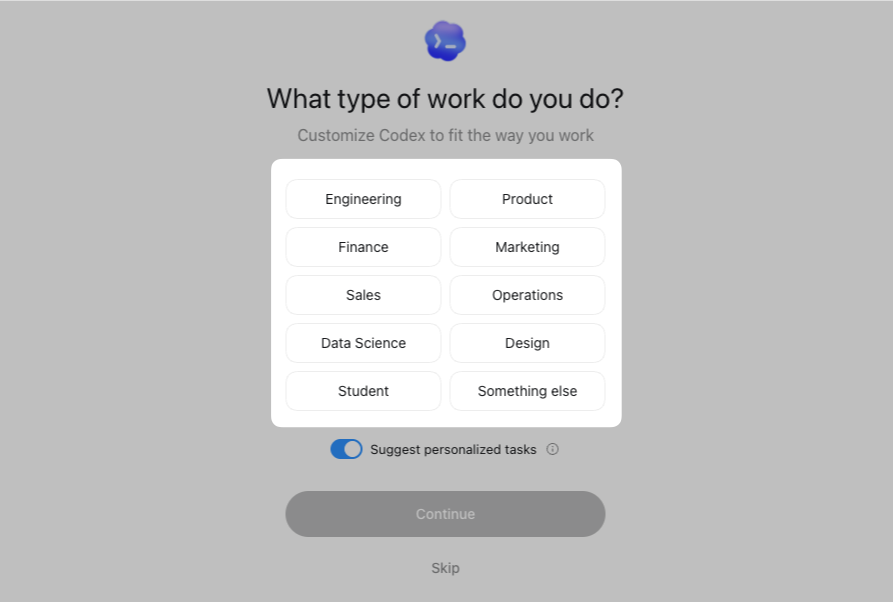
The Codex interface looks a lot like ChatGPT, but it's a completely separate tool. You can download the Codex app for macOS or Windows. It's only available on paid plans: ChatGPT Plus and Pro (for individuals), and Business and Enterprise (for companies).
So what can Codex actually help you with?
Codex is OpenAI's new agent tool, and it can work directly with the files and projects on your PC. It doesn't just reply in a chat. It can read, change and create files for you. You can also give Codex access to many of the other tools you work with, like Outlook, SharePoint, Teams and a lot more, so it can carry out tasks there too.
If you haven't used this kind of agent tool before, ease in slowly. Give Codex very limited access at first (a few test folders, say), and learn how it behaves before you let it touch important folders or systems.
This guide is a general introduction to Codex for those of you who haven't used anything like it before.
I'll walk through the five most important features in Codex, with examples from a typical office day. The goal is to help readers without an IT background get comfortable with what the tool can do, all explained in plain language without unnecessary technical jargon.
Let's get started.
1. File access: Codex works directly in your folders
The first and probably biggest difference from ChatGPT: you can give Codex access to the files on your own machine. Thankfully you don't have to grant access to everything. Start with a single folder.
How is this different from just sharing some files with an AI chatbot?
When you chat in ChatGPT or Claude, you have to upload files every time. Those files get cached in the cloud at the AI provider. With Codex, you just point at a folder, and the agent reads, edits and creates files there.
For example. Say you have a folder with 150 invoices, a mix of PDFs and images. You can ask Codex:
The folder Invoices contains my supplier invoices. Analyse them and make an Excel sheet that shows total amount, breakdown per supplier, and monthly trends. Save the sheet in the same folder.
Codex finds the folder, reads every invoice (including the ones that are just images), drops the numbers into a spreadsheet, and saves it where you told it to.
The same idea works for any other type of file: meeting notes, contracts, applications, client letters. If it lives in a folder on your machine, Codex can help you analyse it and present the findings in whatever format you want.
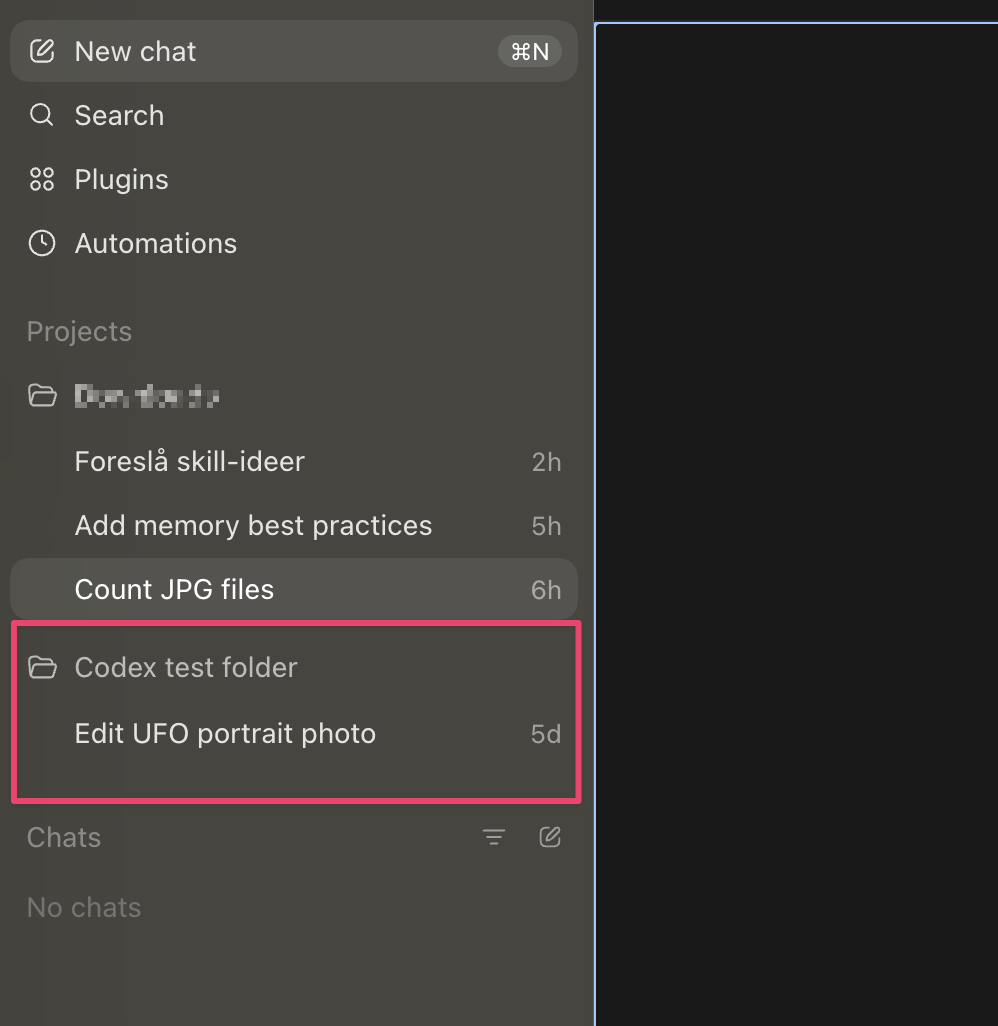
Tip: organise your work in Codex as projects. A project is a folder on your machine that Codex has access to as its workspace. Every chat belongs to one project, and the agent remembers your context when you come back to the same project later.
2. Codex learns how you work
Codex has two kinds of memory. One you control yourself, the other the agent updates on its own.
Why does memory matter? The more Codex remembers about you and how you work, the less you have to explain every time.
You only really need to think about the memory you can update yourself. It lives in a file called agents.md. You can think of this file as a sort of user manual about you, which Codex reads every time it works in that project. Only put things in there that are fairly static.
The easiest way to update memory is to just tell Codex in the chat, e.g. "Remember that I prefer short answers", or "Forget that I have a fish called Charlie". Codex will add it to its memory (the agent.md file) on its own.
Examples of things you can ask Codex to remember:
- I live in Norway, so use NOK and metric units (kilograms, meters, etc) when relevant.
- Avoid boring default icons when you make presentations.
- When I ask you to explain a concept I don't understand, give me precise, thorough, detailed info, not a short version.
Memory is available at two levels: global (works across all sessions on your PC) and local (only works for the specific project you're in).
Important! You should never ask Codex to remember passwords, API keys or any other sensitive information.
3. Plugins: Codex connects to the tools you already use
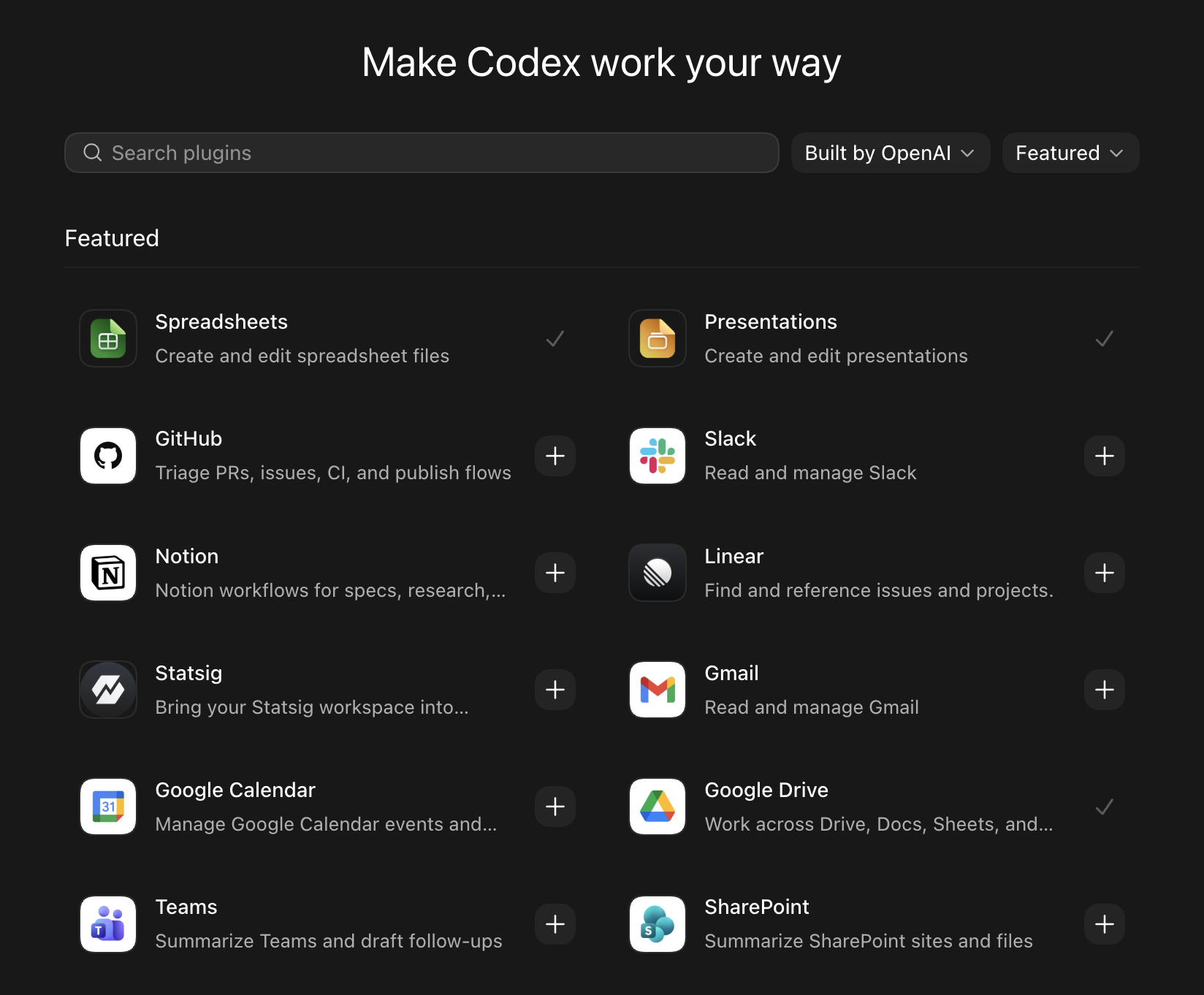
A plugin is a connection between Codex and another tool, like Outlook, Slack, Notion, Teams, OneDrive, SharePoint, and over 100 others. You install a plugin once, and after that the agent can use the tool you enabled it for.
Click "Plugins" in the left-hand menu to browse or enable relevant plugins. You should only connect plugins you actually need and will use.
Say you're responsible for keeping track of customer enquiries by email. You can ask Codex:
Look through my Outlook inbox for the last two weeks, find all enquiries from potential customers, and make an Excel sheet with company, contact person, and what they're getting in touch about.
The agent opens your inbox, reads the emails, sorts them, and fills in the sheet. If you want, it can also draft a reply email for you, or add them into your CRM (if you've connected it / enabled the plugin).
You use plugins by typing @pluginname in the chat followed by what you want Codex to do.
Good to know: you can run several tasks in parallel. While Codex is working on the Outlook job, you can start a new chat or project and ask for something completely different. The sessions run at the same time, and you get answers as soon as Codex finishes each task.
4. Skills: reusable recipes
You can think of a skill as a ready-made work recipe the agent can run when you ask for it.
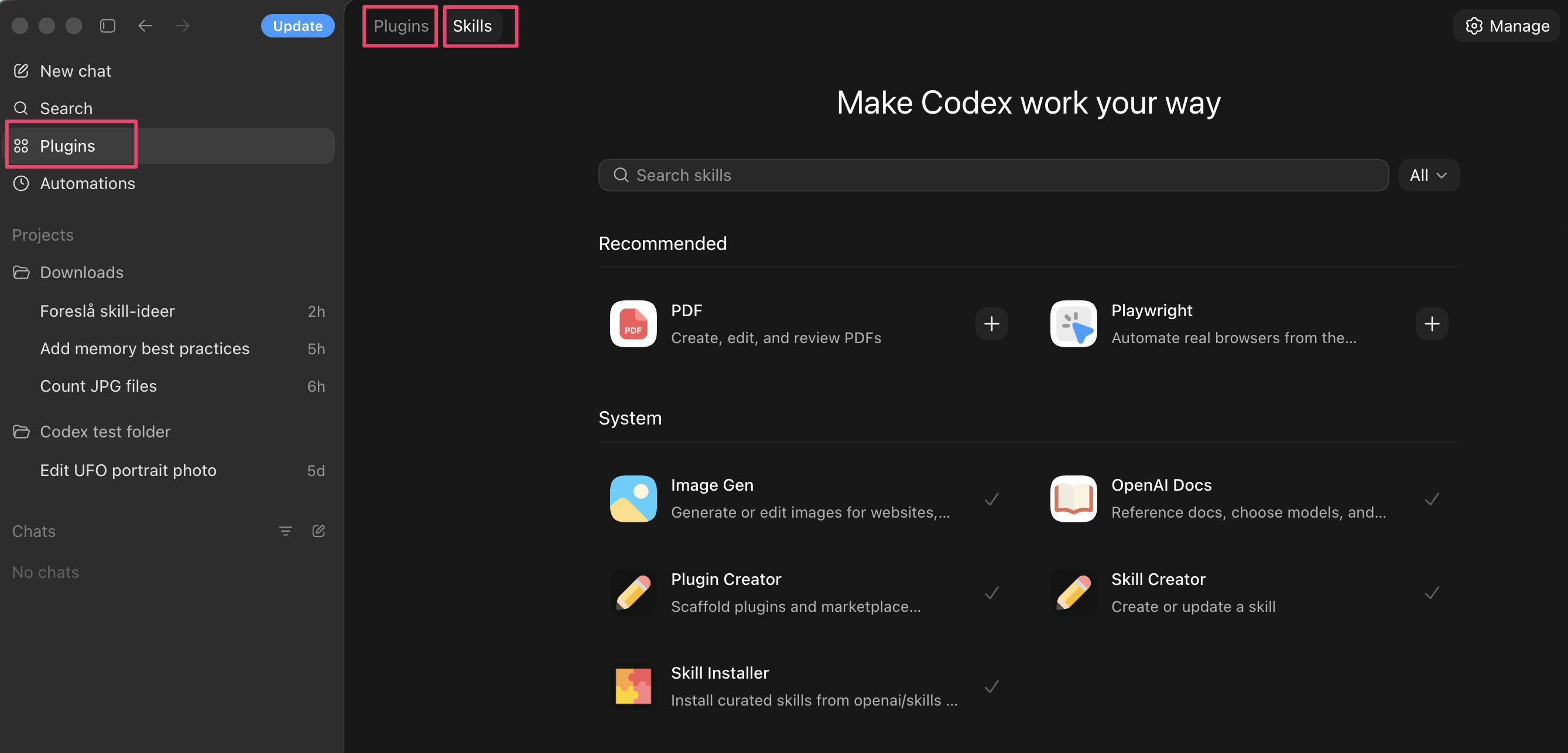
You can make your own skills (just tell it what you want to build in the chat), or use ready-made skills that come with plugins (see the list of predefined skills under the "Skills" tab).
The best way to build your own skill is to first walk through the task manually together with Codex. Ask Codex to do something, adjust, ask for changes, adjust some more, until the result looks the way you want. When you're happy, just say:
I'm happy with this. Turn it into a skill I can use again later. The skill should be called…
Codex then builds an instruction file based on everything you've done together. Next time you need to do the same kind of task, you type "/" followed by the skill name in the chat (e.g. /chaos-to-plan), and the whole recipe runs again for whatever task you're working on.
Examples of skills that fit common office work:
- A "weekly report" skill that pulls the most important things out of Outlook and Teams, and summarises them in a Word document.
- A meeting-minutes skill that always gives you minutes in the same format, for example a table with decisions, action points, owner, deadline and open questions.
- A "newsletter translation" skill that takes a Norwegian draft and gives you back an English version in your writing style.
Every time you use a skill, you can improve it. Just say "from now on, do it this way", and the skill gets updated.
5. Automation: tasks that run on a schedule
Automations in Codex are a really simple, practical way to automate repeating tasks. Some obvious uses are status reports, meeting prep, suggestions for cleaning up document folders, quality checks, and decision logs.
This is probably the feature that gives you the most back for the least effort.
Here are some examples of what you can set up automations for:
- Monday morning: a summary of all emails and messages that came in over the weekend.
- Every Friday afternoon: a status report for the projects you're following up on, based on relevant info in Teams, Outlook and your calendar.
- Every month: go through folder "X" and suggest files that should be archived, merged, renamed or moved. Don't ask Codex to make changes, just to propose them.
Like a lot of things in Codex, this feature is easy to pick up. You go to "Automations" in the left-hand menu, click "+ New automation", and describe a task you want Codex to do in plain language. You can also automate a skill you've built. Then you choose how often Codex should do it, and optionally connect it to a relevant project folder or app.
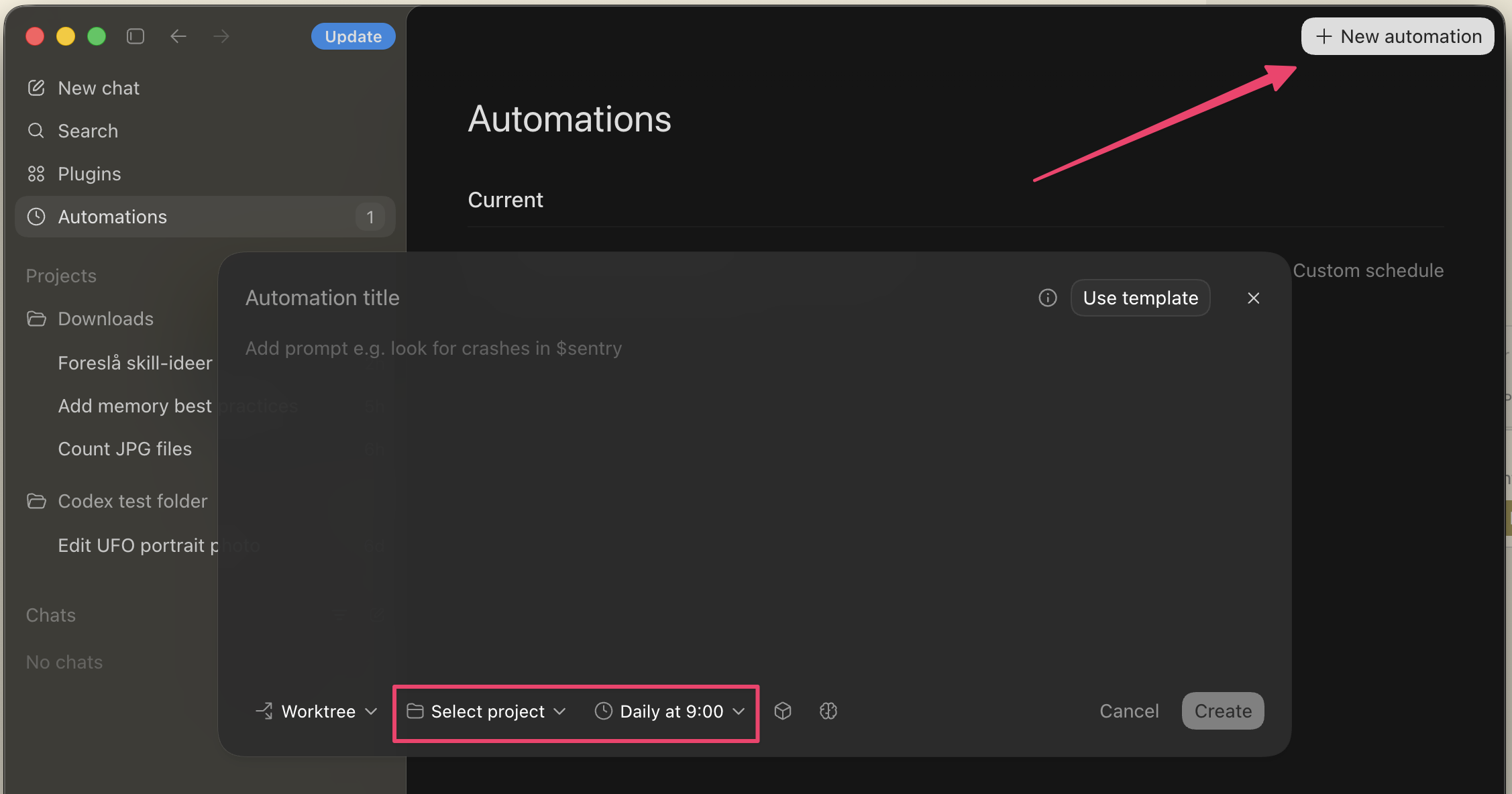
Alternatively, you can just ask Codex to set up an automation for you directly in the chat, describing what you want to automate and when / how often it should run.
Important! If your automation needs to work with a local project folder, the Codex app has to be open/running at the scheduled time.
"Computer use" isn't available in Norway yet
If you've seen Codex demoed in American videos, you might have noticed that it can control the computer directly with its own "mouse pointer" (only available for Mac apps). It opens and works inside programs, types and clicks buttons, while you can watch or work on something else. This feature is called "computer use", and it isn't available in Norway or the rest of the EEA yet.
OpenAI has said it'll be rolled out in the EEA, but they haven't given a date. There are rumours of unofficial workarounds, but I haven't tested them, and I wouldn't recommend bypassing region restrictions anyway. For most Norwegian users, the safest thing is to use the Codex features that actually are available, and wait for an official rollout.
Everything else we've gone through in this guide works as normal in Norway, though your experience may vary depending on how your company is set up.
 Codex