 YNSPIRA
Clean up your files with Claude Cowork and let it keep them tidy

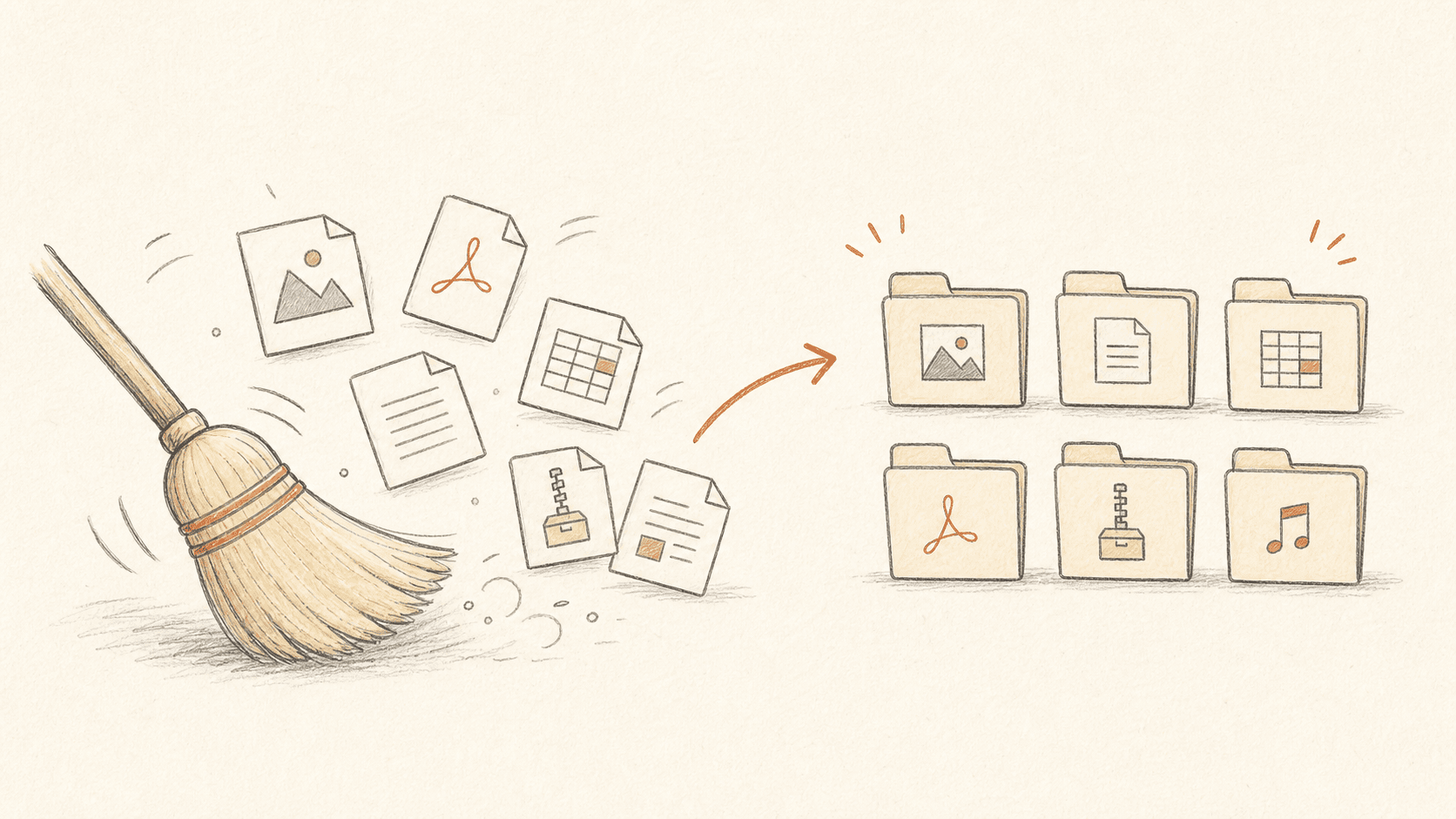
A hands-on test case that shows how to use Claude Cowork to analyze, organize, and automate a file cleanup.
This article is meant as a test case you can run yourself to get a feel for what Claude Cowork actually does. It's written for office workers and other knowledge workers without a technical background.
Claude Cowork is a desktop app where Claude works directly with the files and folders on your PC instead of just replying to you in a chat. Cowork only gets access to the folder you point it at, not the rest of your machine, so it tends to feel much safer for beginners than Claude Code. This article walks you through how to test and get started with Claude Cowork using a concrete, easy-to-follow use case that takes about 20-30 minutes (depending on the size and complexity of the test folder you choose).
I picked a test scenario anyone who works with a computer will recognize, whatever their role or industry: analyzing and organizing files in a messy folder.
I'll walk step by step through how I used Claude Cowork to:
-
Analyze the contents of a folder
-
Give me an overview of the findings in Excel format
-
Suggest files worth considering for deletion
-
Sort the content into subfolders by category and date
-
Create a skill (a ready-made workflow) I can trigger whenever I want to keep the folder tidy over time
-
Set up a scheduled task that runs a monthly cleanup of the folder
By following the steps in this guide, you'll:
-
Understand the difference between Claude Cowork and a regular AI chatbot (like Claude chat, ChatGPT, or Copilot)
-
Get familiar with using Cowork to work with local files on your machine
-
Get hands-on experience with agentic tools (tools that can take action outside the chat window)
-
Learn how to build a reusable skill you can run on demand, or a scheduled task that runs on its own at times you pick
AILO also has a more thorough guide for setting up Cowork as a working tool: "How to use Claude Cowork". It walks you through how to structure a Cowork folder, create context files, and add instructions at different levels. The goal there is to set Cowork up as a permanent assistant that knows you and how you work. Worth adding to your reading list if you want to learn more about setting Cowork up well across many different scenarios.
Getting started
You don't need any special background to follow this article beyond a bit of experience with regular AI chatbots. Claude Cowork isn't available in the browser, so you have to download and install the Claude desktop app.
Installation
Cowork is part of the Claude desktop app. Download the app from claude.com/download, install it, and log in with your Claude account. Open the app and click the Cowork tab.
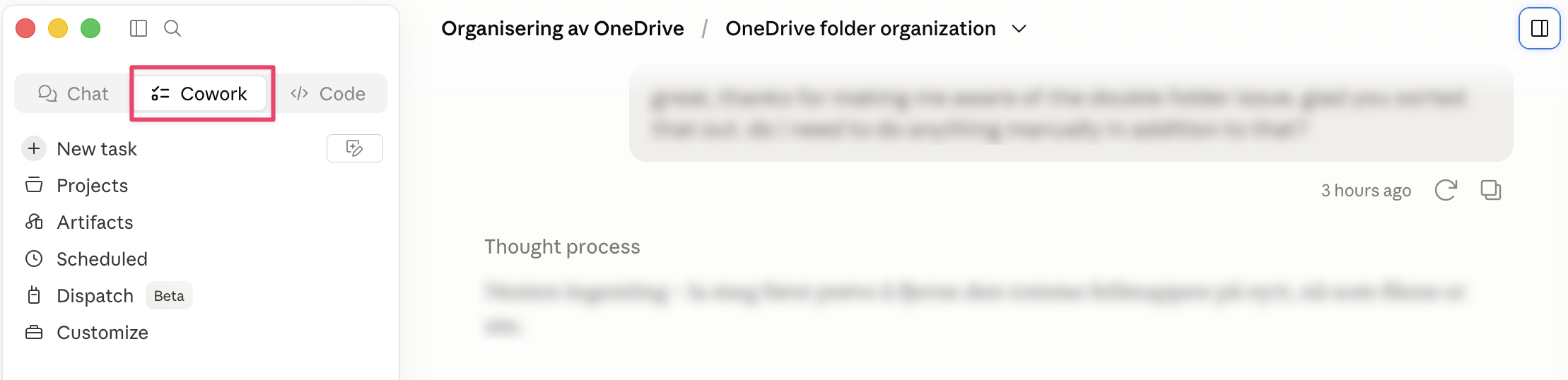
Heads up! To use Cowork you need a paid Claude subscription (Pro, Max, Team, or Enterprise).
Which folder should you pick?
The folder you pick for this test case should meet three requirements:
-
It should be a low-risk folder without critical content, so you can test freely.
-
It shouldn't contain sensitive information.
-
It should have enough content that testing analysis and organization is worth doing.
My pick: I'm using my OneDrive folder. I've moved over to Google Workspace for business, so OneDrive isn't where I keep important work files anymore. It's turned into a kind of test environment where I try out Copilot and other AI tools. Which makes it a perfect fit: full of random content, but nothing critical or sensitive.
Tip! No suitable low-risk folder? Make a test folder and copy in a few dozen files. Call it something like "Cowork Test Folder".
Quick note on using Cowork with cloud folders (OneDrive, Google Drive, etc.)
Cowork works with folders that live locally on your PC. OneDrive and Google Drive are cloud services (the files sit in the cloud, not on your PC), but you can set up sync so the files land on your PC too. That way you can reach your cloud files from Finder (on Mac) or File Explorer (on Windows). That's what makes it possible to give Cowork access to the folder using the method I describe in this article (rather than Connectors). As long as your cloud folder is synced to your machine, Cowork can work with it like any other local folder. The changes Cowork makes sync back to the cloud and to your other devices as usual.
Which cloud files can Cowork open?
Cowork can only read files that are stored locally on your machine. Files that are "online only" (not downloaded) have to be pulled down first. Here's how to tell them apart:
On Mac (Finder):
-
☁️ Cloud icon next to the file = online only, can't be opened
-
Empty field (no icon) = stored locally, can be opened
-
🟢 Green circle with a check = always local, can be opened
On Windows (File Explorer):
-
☁️ Blue cloud = online only, can't be opened
-
✔️ Green check in a white circle = downloaded locally, can be opened
-
✅ White check in a green circle = always local, can be opened
How to make a folder or file readable for Claude Cowork: Right-click the file or folder and pick "Always keep on this device". OneDrive downloads it, and the cloud icon goes away (Mac) or turns into a green check (Windows).
Set up the project and give Cowork access
Create a Cowork project and connect it to the folder you picked. Cowork then gets access to read and make changes in that one folder, and nothing else.
Here's how to set up the project:
Open the Claude app, pick Cowork, click Projects, and pick New Project.
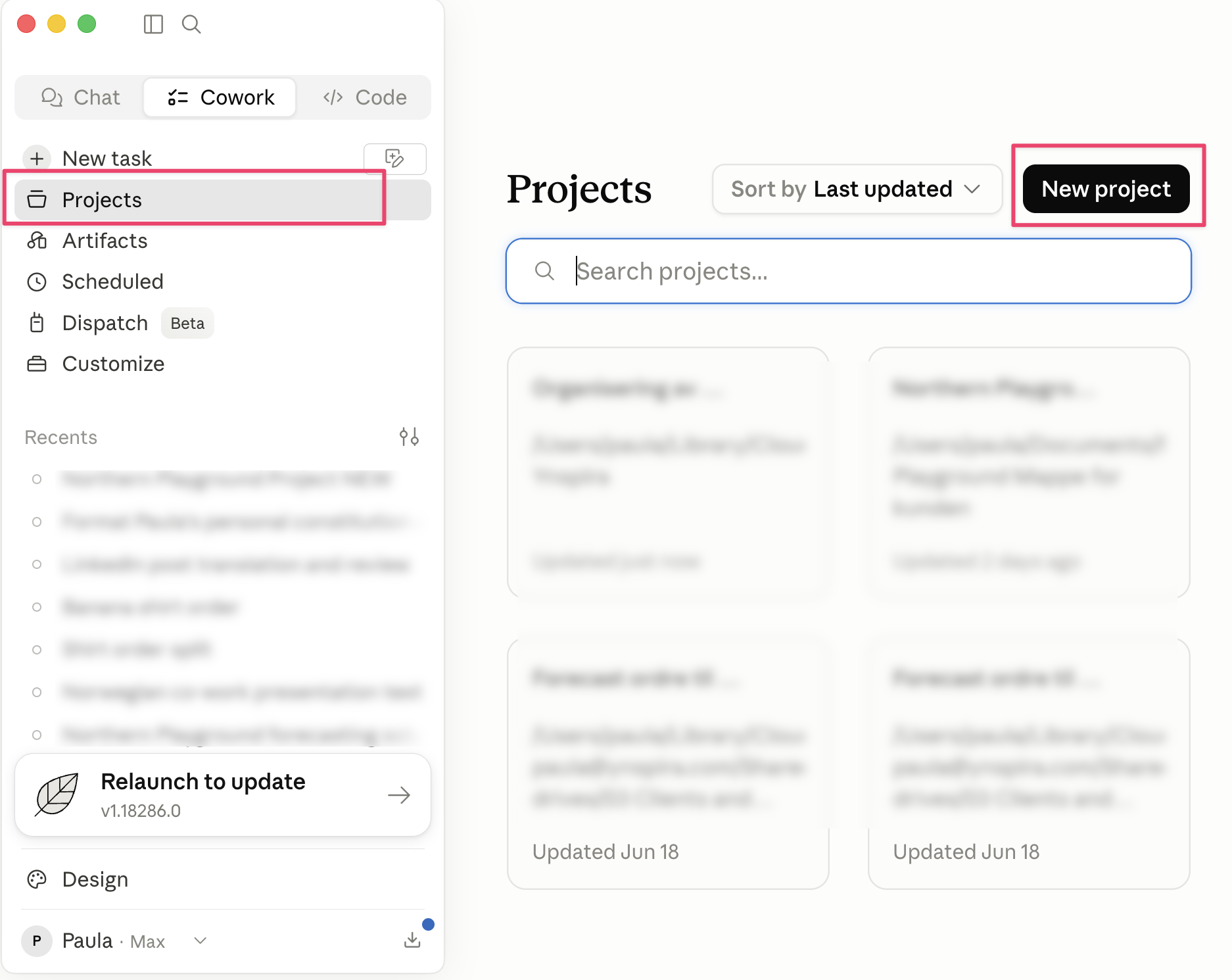
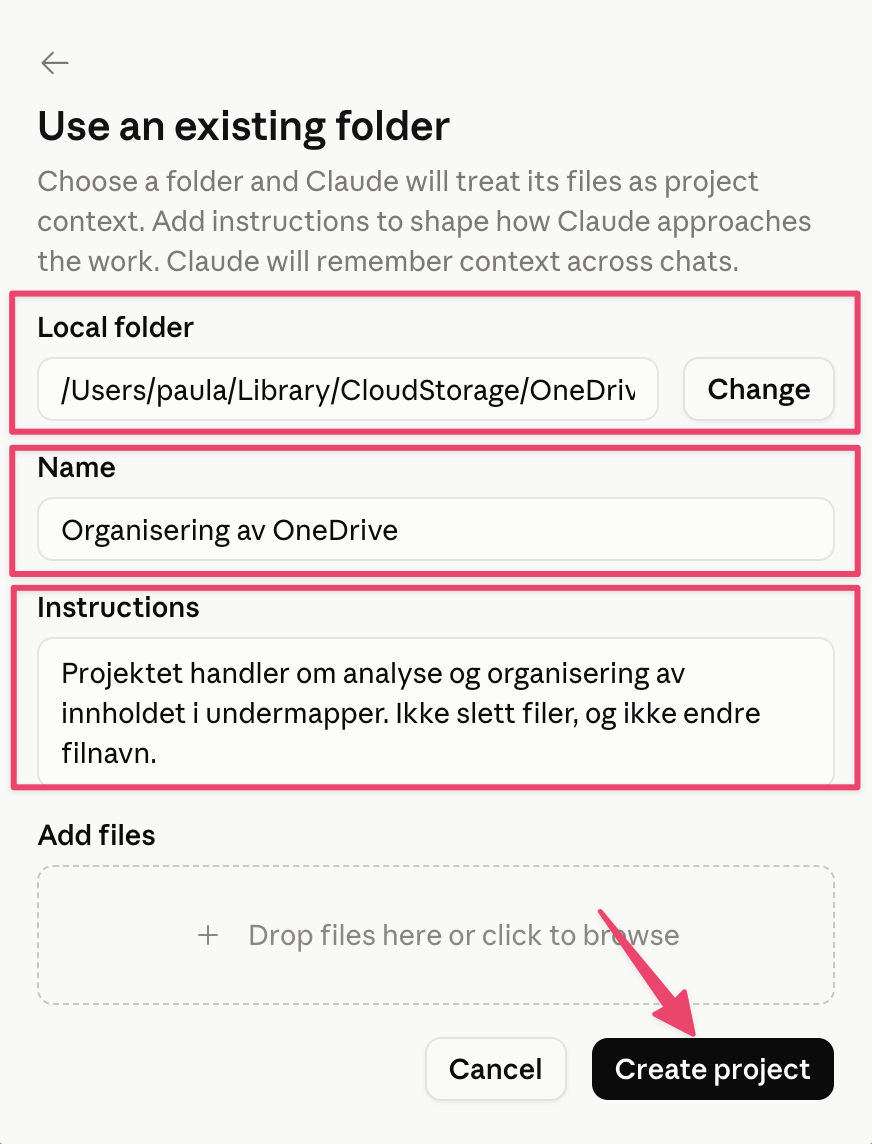
Then pick "Use existing folder" and choose the folder you want to tie the project to.
Write a short instruction in the instructions field if you like, give the project a name, and click Create.
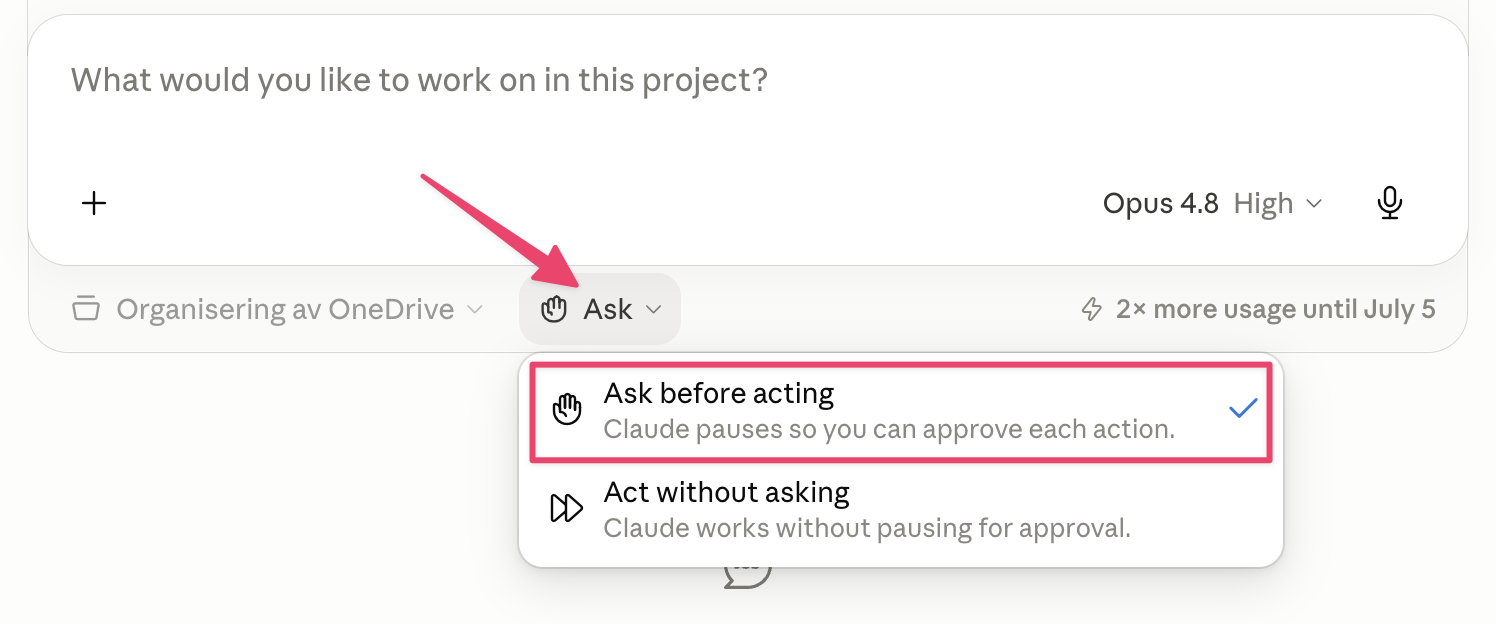
Pick a permission level
Cowork has two permission levels:
"Ask before acting" means it waits for your go-ahead before doing the work. It shows you what it's planning to do, and you can follow along and stop it mid-way.
"Act without asking" means Cowork runs the task on its own. While you're getting to know the tool, I'd stick with "Ask before acting".
Heads up! "Ask before acting" doesn't mean Cowork asks for permission before every tiny step. Once you've given Cowork access to a folder, it can read, analyze, and move files inside it as part of the job you've already approved. The control sits at the plan and task level: you see what it's planning and give the green light before it starts.
Either way, Cowork cannot delete files permanently without clear approval from you.
Model and thinking effort
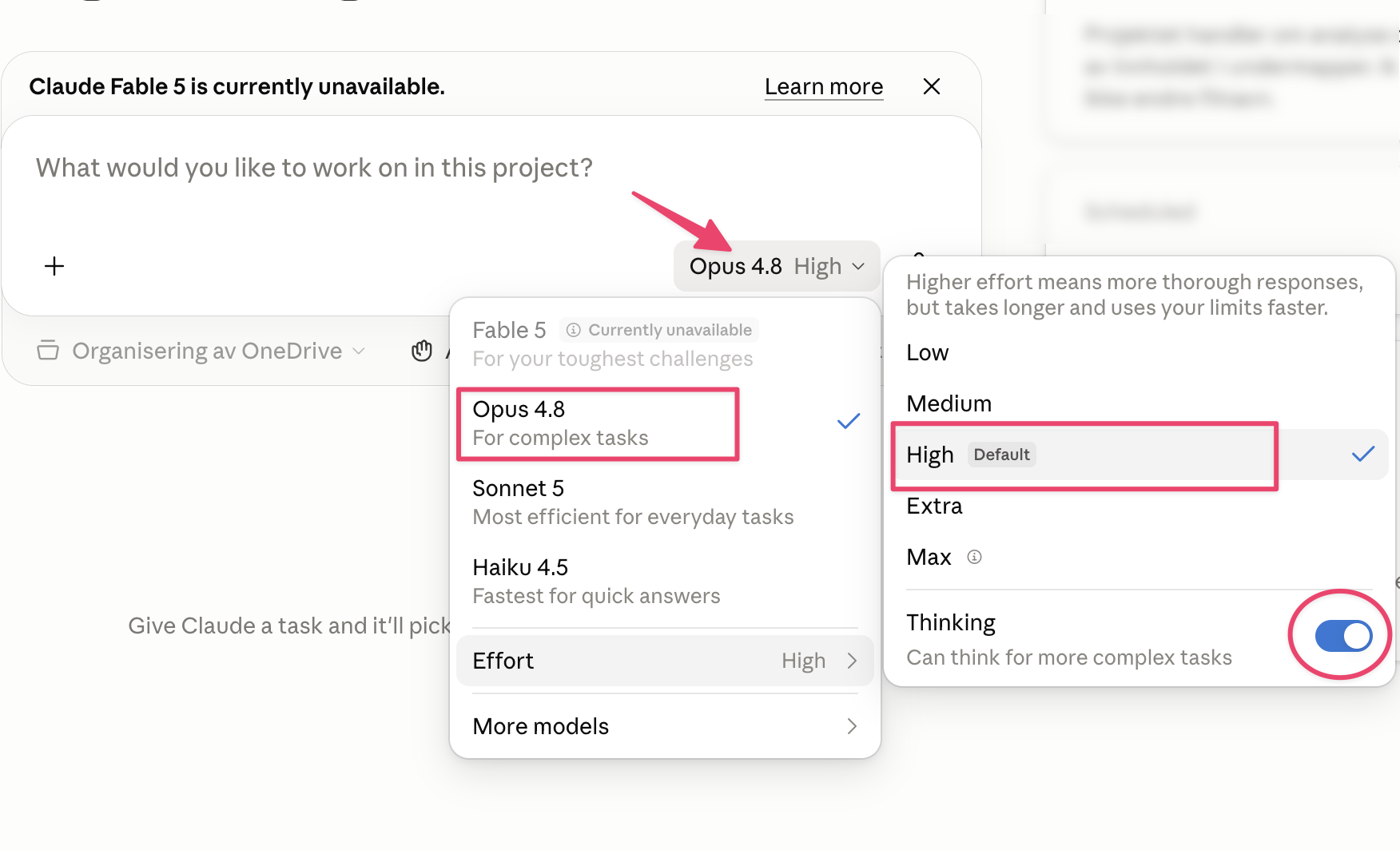
At the bottom of the chat window, you can pick which model to use and how much "thinking effort" Cowork should put into the task.
Even though the exercise itself is easy to follow, Cowork has to analyze the content, spot patterns, and suggest a sensible categorization before it moves any files. The better it does that, the less you'll have to clean up afterwards. So I went with a powerful model and high effort:
-
Model: Opus 4.8, a powerful model built for more complex tasks than Sonnet and Haiku are designed for.
-
Effort: High. Higher effort gives more thorough answers but takes longer and uses more of your quota.
Rule of thumb: the more the result matters, and the harder it is to undo, the more it pays off to use a powerful model and high effort. For simpler tasks you can safely pick a lighter model and lower effort to save time and quota.
Start with a clean analysis
Now you can send your first message to Cowork. The smart move is to start with a clean analysis, without Cowork touching a single file. That way you can check that what it finds makes sense and matches your own understanding of what's in the folder, before you turn it loose on the actual cleanup.
Here's a prompt you can reuse:
The result: the Excel report
A short time later you get a quick summary directly in the chat and a finished Excel report saved to the OneDrive folder. The report has 8 sheets, covering everything from a general overview and file breakdown by year and format to a list of the largest files and possible duplicates.
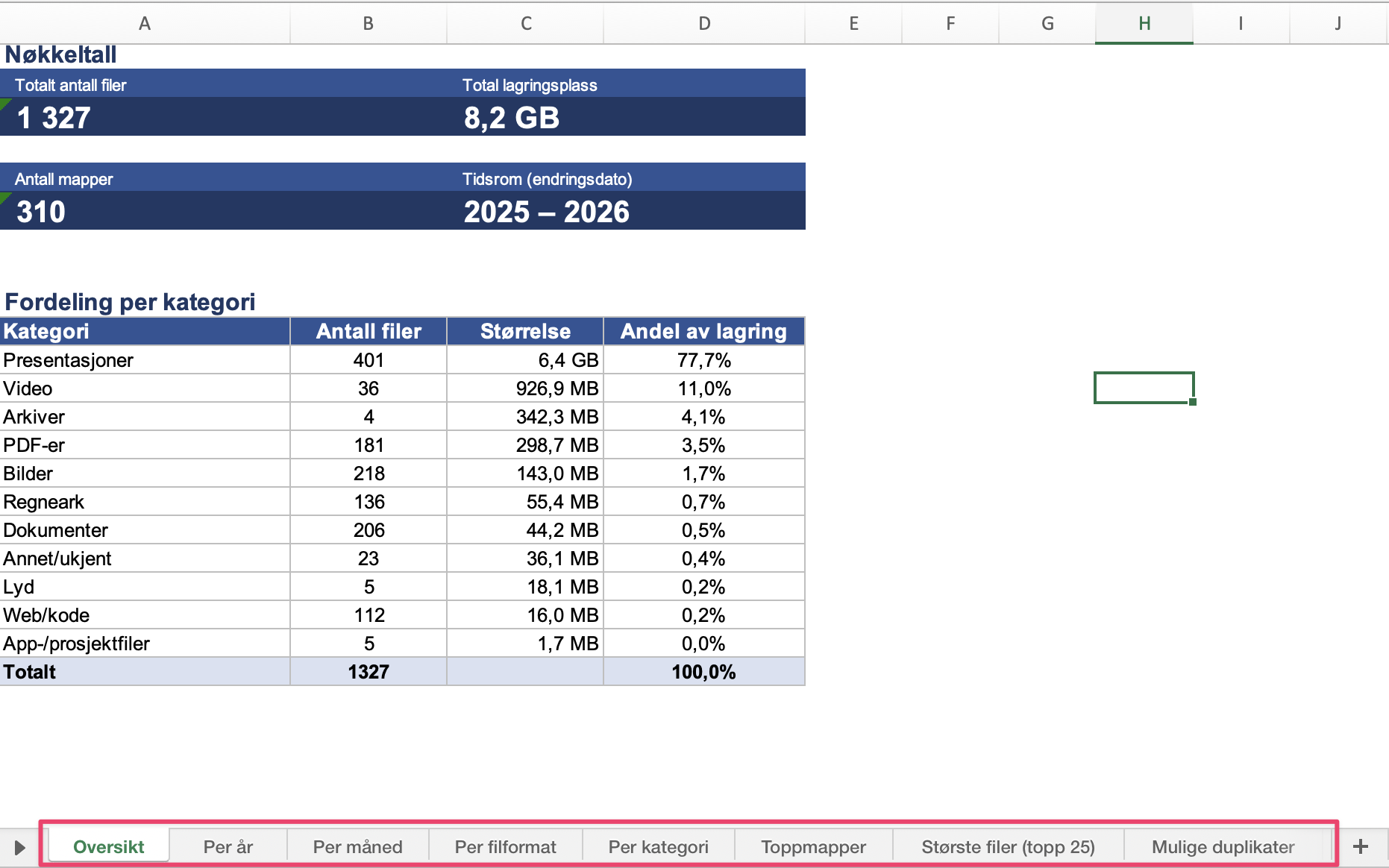
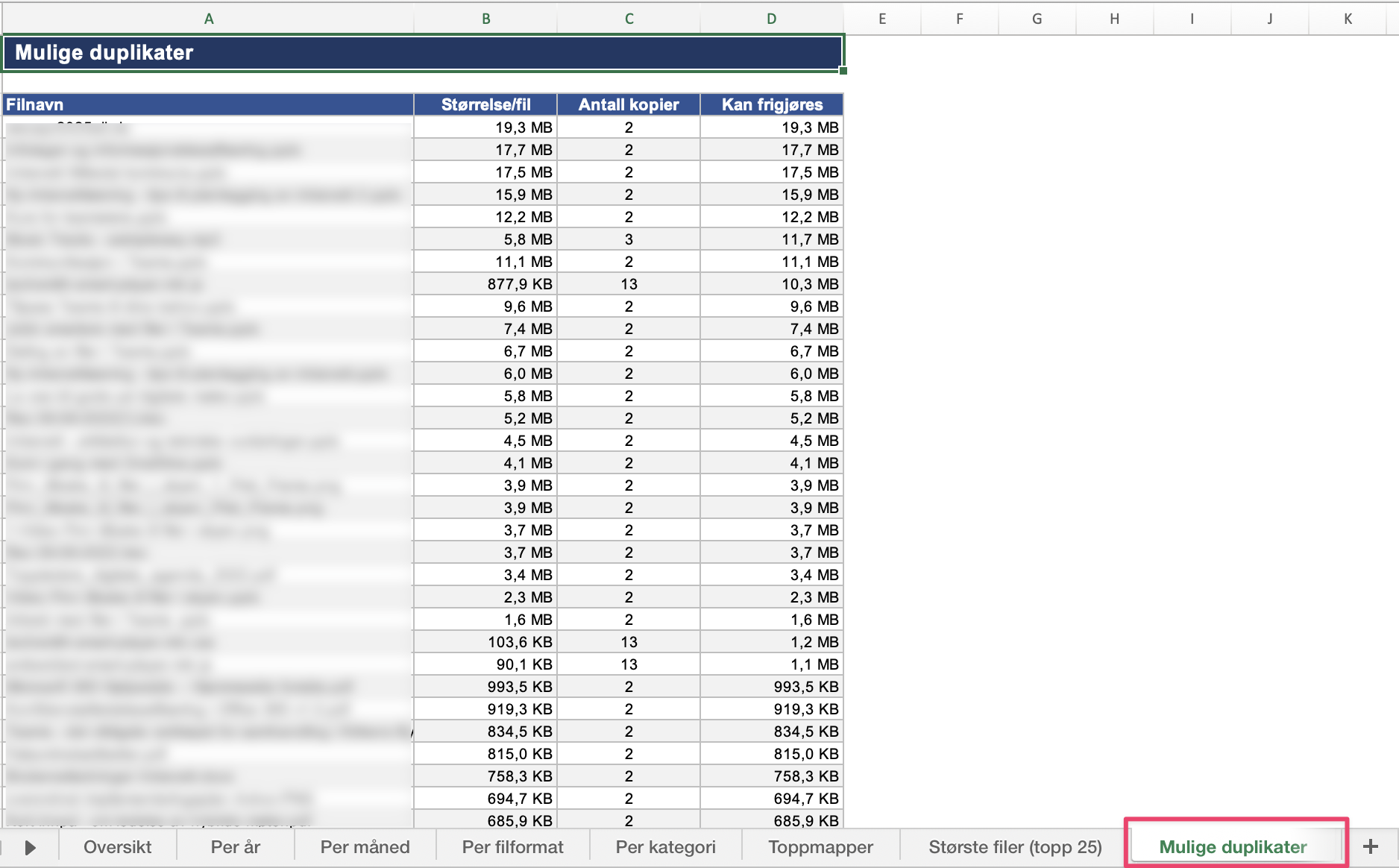
Alongside the report, I got a general summary and other interesting findings in the chat, which is what I asked for.
Look at the Excel report Cowork produced. Does it give you the overview and insight you need to understand what's in the folder? If anything is unclear, or you're missing information or categories, you can ask Cowork to adjust the report.
Suggestions for reorganizing the content
The next step is to ask Cowork for suggestions on how the folder should be organized. I don't want to just drop the files straight into the categories from the report. I want a proposal for organizing the folder in a way that's actually easier to navigate.
Quality-checking, adjusting, and planning the reorganization
After going through Claude's proposed folder structure, I had to ask Cowork to make a few important adjustments. For example, I had to make it clear that system folders like "Microsoft Teams Chat Files", "Whiteboards", and OneNote "Notebooks" should be left alone in the reorganization. I also spotted a couple of other folders I wanted to keep as they were, without Cowork moving or reorganizing anything inside them. Based on my feedback, Cowork sent back an updated proposal.
I was happy with the updated proposal, but I also wanted a detailed overview of what would move where. So I asked Cowork to make a move plan in Excel.
After Cowork produced the move plan, I asked it to QA the plan again and map possible risks.
Most of the risks Cowork flagged came down to me working with a OneDrive folder (cloud storage synced to PC). If you're working with a regular local folder, these risks don't apply to you.
Risks and fixes, the short version:
The main risk was file path length. A file path is the full "address" of a file: every folder and subfolder name the file lives inside, plus the file name itself, strung together. Microsoft and OneDrive have an upper limit on how long that path can be, and a deep folder structure with long names can push some files past the limit and stop OneDrive from syncing them. The fix was simple: shorter folder names and a flatter structure in the plan, instead of nesting folders deep.
Good to know: for reorganizing a complex folder with a lot of files
Cowork also recommended breaking the move itself into phases instead of doing everything at once. This was especially relevant for me, since my OneDrive folder had over a thousand files and a fairly complex folder structure already. The point of splitting it up is to make it easier for me to quality-check the result after each phase. I ended up with four phases.
If you're working with a smaller, simpler test folder, without a particularly complex structure or a huge number of files, you don't need to split the move into multiple phases. I'm mentioning it anyway in case you later want to use Cowork to clean up a bigger, more complex folder. For the test case itself, it's not something you need to worry about.
Run the move and check the result
Once you've made any adjustments to the proposal, you can ask Cowork to run the actual reorganization of your folder. Ask it to produce a clear report when it's done, so it's easier for you to quality-check the work.
Once the move is done, read the report to see if everything went according to plan, or if any errors came up.
Take a few spot checks yourself: open some of the new folders and see if the contents are what you expected, and whether the new structure matches the proposal you approved.
You may also find some of the old folders sitting empty after the move. That's because the prompt told Cowork not to delete anything. If so, you'll need to delete the empty folders manually.
Build a skill that keeps the folder tidy
Now that the folder is tidy, it's smart to make it easy to keep it that way over time. Instead of repeating the analysis and organization job every time new files pile up, you can build a skill: a ready-made workflow Cowork can run on request. The skill sorts new files into the structure you've already set up, without you having to explain everything from scratch.
Heads up! Make sure you're happy with the structure and quality check from the previous step first. The skill builds on the same logic, so any mistakes there will repeat every time the skill runs.
You create a skill by asking Cowork to build one based on the work you've done together. Personally, I like to look over and approve what Cowork proposes, so I do it in two steps: first I ask for a proposal, then I read through it before approving.
💬 Build a skill based on the structure we've created. The skill should help me keep the folder tidy by sorting new files into the right folders in the existing structure. It doesn't need to produce an Excel report, but it should first do a quick analysis to figure out where each file belongs, and give me a simple log showing what was moved where. Call the skill "Folder-tidier".
Once Cowork has finished building the skill, you'll see this in the chat:

Click "Save skill" to save the skill, then open the skill (you'll find it in the folder you've given Cowork access to) to bring up the install window. Click "Add to library".
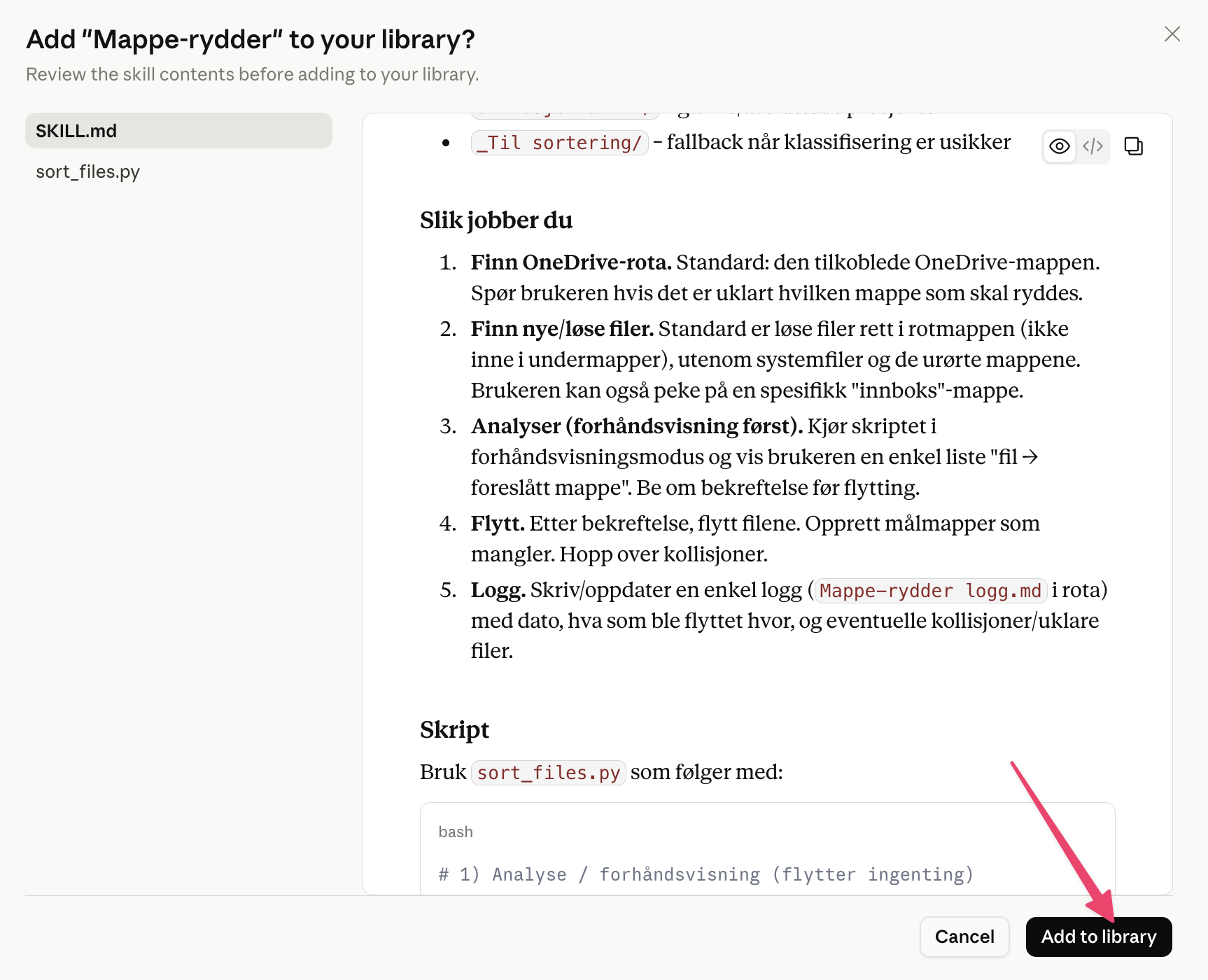
The skill is now in the skill library (under Customize → Skills). You can see the full instruction Cowork wrote and edit the skill from here.
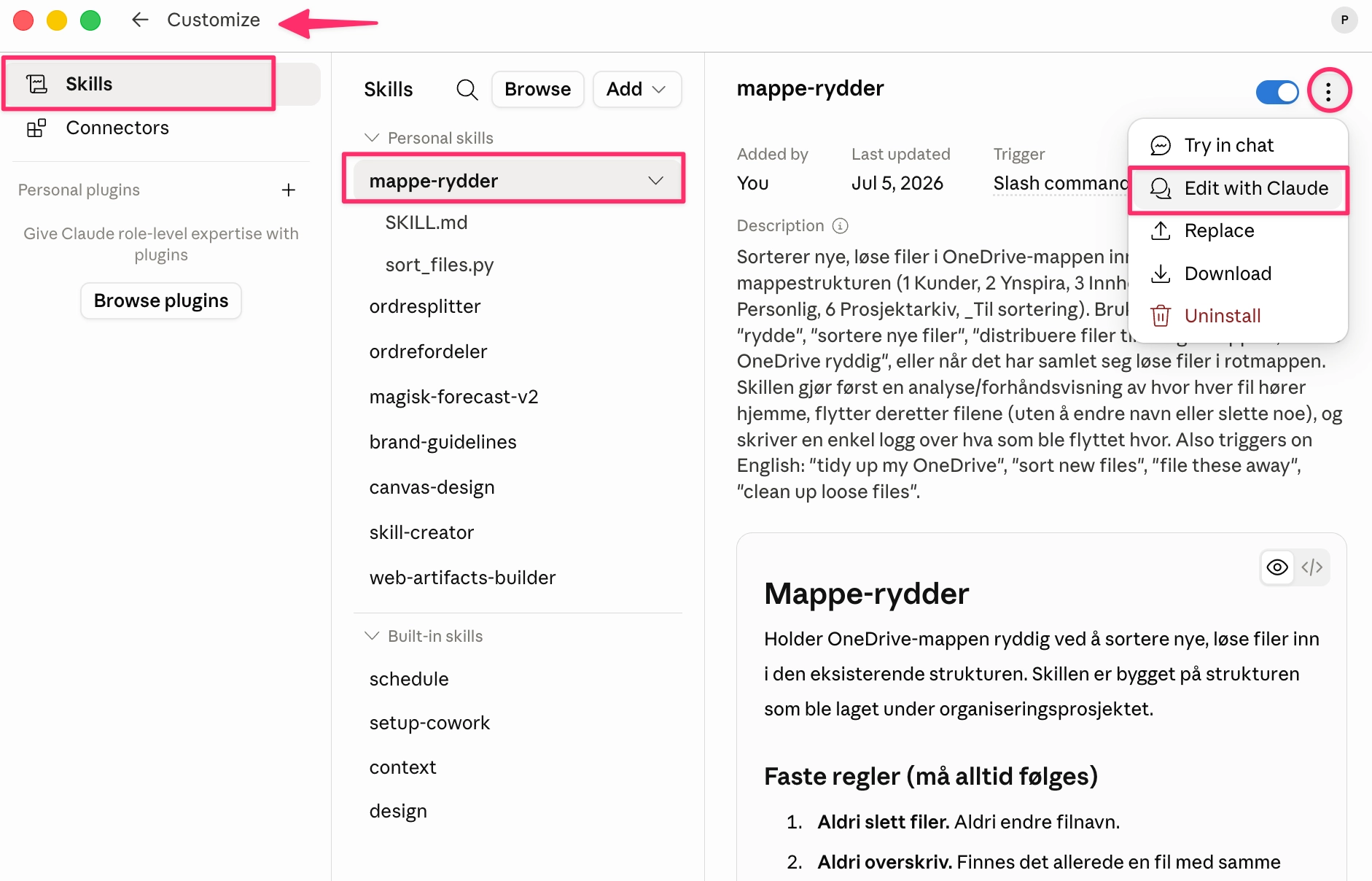
How to use the skill:
You run a skill by typing "/" followed by the name in the chat, for example /folder-tidier. You can also just ask in your own words, for example "tidy [folder name]" or "sort the new files", and Cowork will understand that it should tidy the folder the skill was built for.
The first time you run it, do a quick quality check of the result the same way as before, and tweak the instructions if anything landed in the wrong place.
Set up a scheduled task that runs the skill automatically
Now you have a skill that runs on demand.
If you'd rather not have to remember to ask Cowork to run the skill, you can turn it into a scheduled task. It'll run automatically at times you pick, for example once a month. This is where you move from using AI reactively, where you ask and it answers, to letting it work in the background for you.
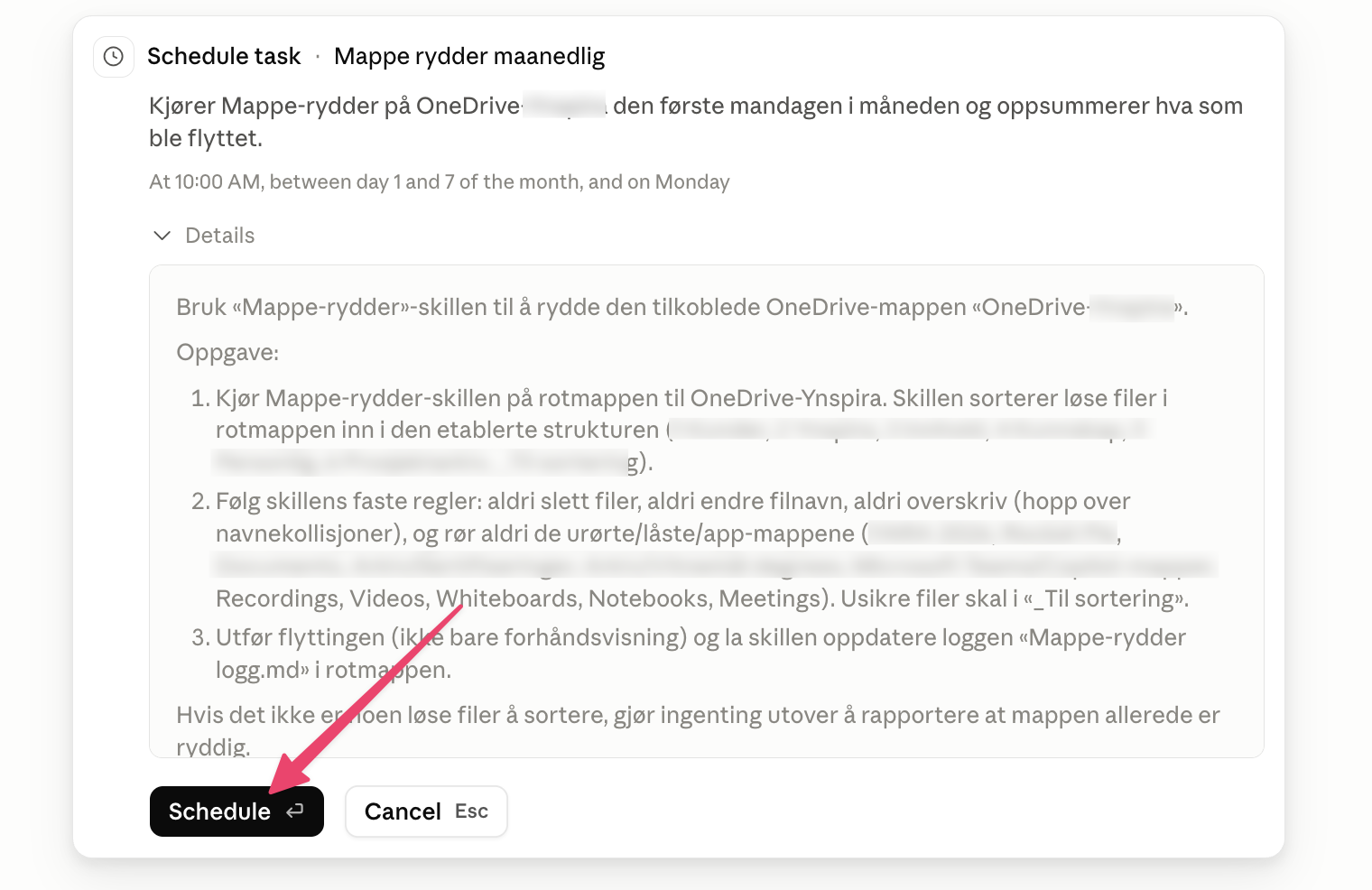
You create a scheduled task by asking Cowork in your own words and telling it how often it should run:
You have to click "Schedule" to approve setting up a scheduled task.
The task now shows up under "Scheduled" in the left menu. From there you can see past runs, pause the task, edit the frequency and time, or delete it.
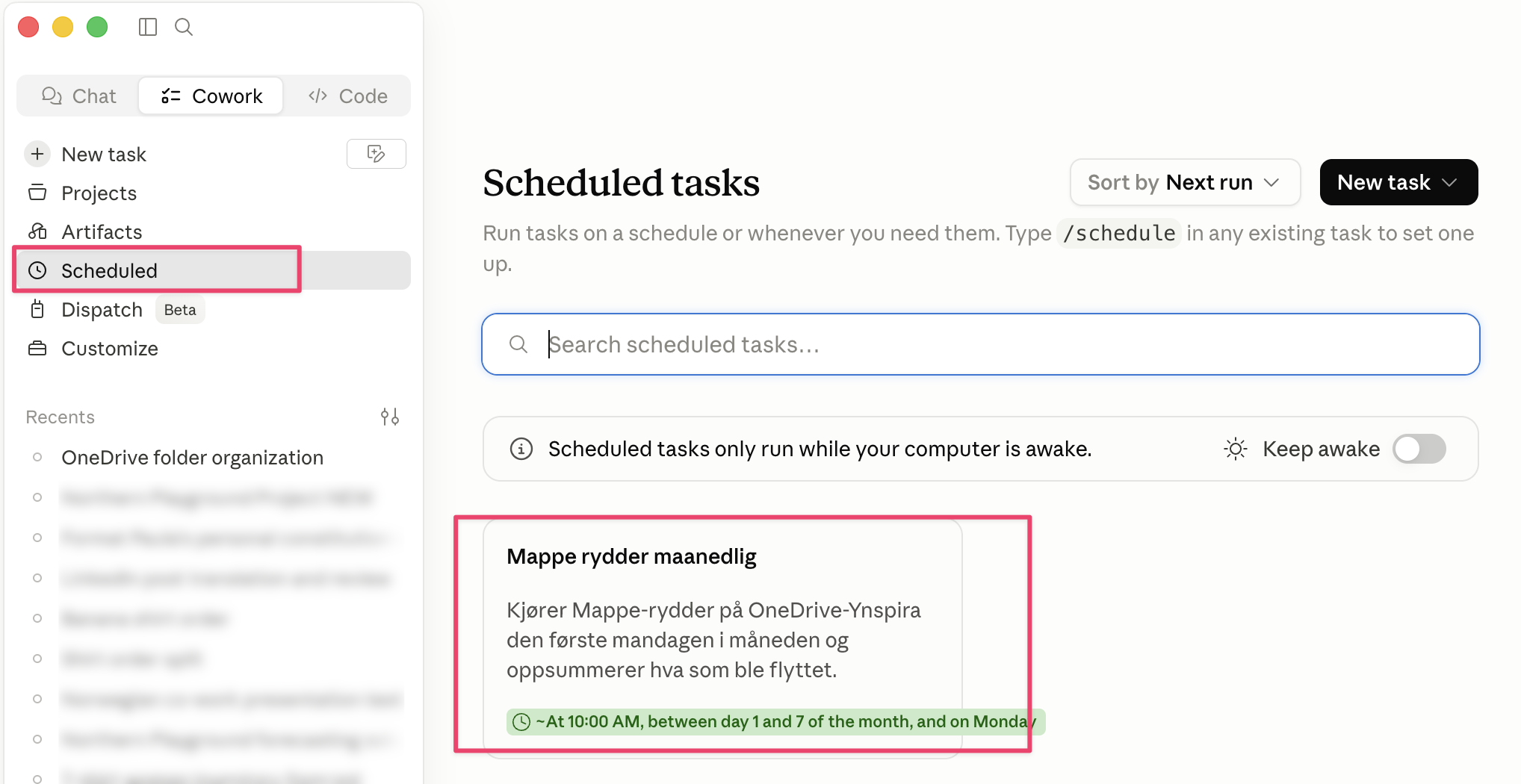
Important: A scheduled task in Cowork only runs when your machine is on and the Claude app is open. If your PC is off or the app is closed when the task was supposed to run, it'll run the next time you open the app instead.
Summary
-
Start with a low-risk folder that doesn't contain sensitive or critical content, so you can test Cowork safely.
-
Ask Cowork to analyze before it acts, and set the permission level to "Ask before acting" when it's working directly in your files.
-
Follow along while Cowork works, so you can stop or correct it as it goes.
-
Look over the proposed new structure and adjust it before letting Cowork move anything. Nothing moves until you've approved the plan.
-
Quality-check the result afterwards. Cowork usually makes good calls, but a quality check is still worth doing.
-
Once you have a process that works, turn it into a skill so you don't have to write the same instructions again.
-
A skill can also be run automatically on a fixed schedule (monthly, for example), so the task does itself.
The same approach works for many other kinds of tasks. Once you've run through the exercises in this article, you can use a similar approach to speed up or automate more file-related tasks with Cowork.
 Claude Cowork