 YNSPIRA
Skills: when you need them and how to build your first one in Claude

If you've used Claude for a while, you've probably explained the same thing more than once.
- "Write in this tone"
- "Use this structure"
- "Remember to separate decisions from action items"
- "Don't write like a 2014 consulting report"
- "Use the colors from this screenshot when you build the dashboard"
It works, but it's a hassle. Every new conversation, you have to repeat how you want things done. Every report, email, summary, or presentation means another round of reminders. Maybe you've even got a polished prompt saved somewhere that you copy-paste in.
Claude Skills are built for exactly this problem.
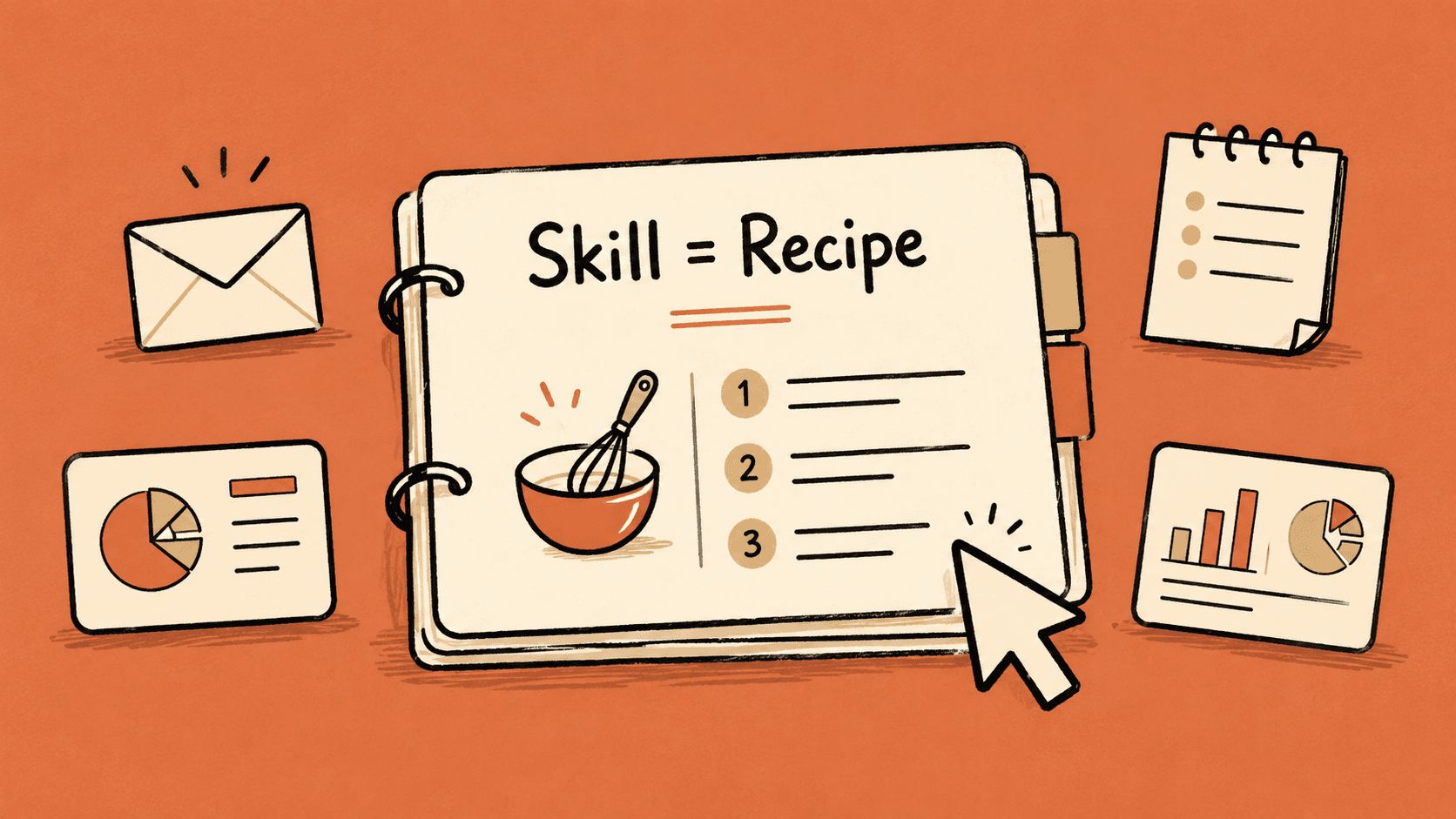
Think of a Skill as a fixed recipe Claude can pull up when it needs to. It can hold instructions, examples, templates, reference files, and in more advanced setups, small scripts. For most people, a single text file explaining how Claude should handle a particular type of task is plenty.
You build the Skill once and save it, and Claude picks it up automatically when needed. In regular Chat, Projects, and Cowork. You don't even have to build the Skill yourself. Claude has a Skill specifically for building Skills. You just tell Claude what it should do.
A Skill is a way of teaching Claude how you want a repeatable task done.
This guide is for anyone who hasn't built a Skill before, or has tried but didn't quite get the point. The goal is for you to understand what Skills are useful for, and then actually start building a few that help you in daily work.
What Claude Skills actually are and what they're used for
A Skill is a folder containing a text file in markdown format with instructions Claude follows when a task gets done. Markdown (.md) might sound or look a bit scary, but it's just a text file with some symbols that define formatting (for example, # means heading 1, ## means heading 2).
You don't really need to think about the folder structure. Claude handles all of that for you, but it's nice to have a rough idea of what's possible.
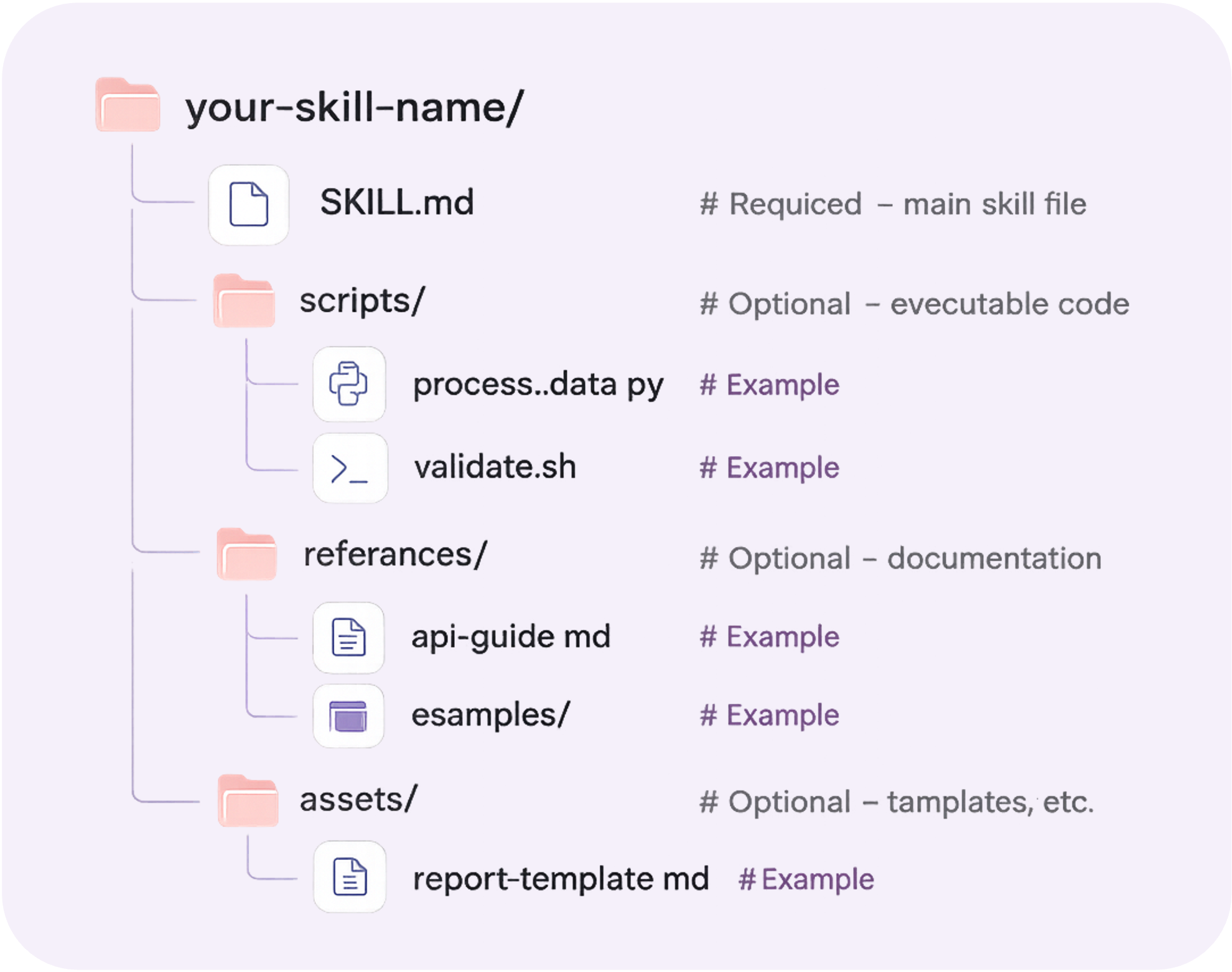
You only need SKILL.md with the actual instructions, but as the figure above shows, you can add more. References are often useful. If you have a Skill for drafting LinkedIn posts, this is where you'd put examples of good posts.
Skills break down into roughly three use cases:
1. Document and content production
Used for creating presentations, design, code, documents, spreadsheets, analyses, dashboards and similar, with predictable design and structure.
2. Automating routines and workflows
This is about teaching Claude a process. It can be fixed steps done directly in Claude (like first asking follow-up questions, doing research, quality-checking, producing a report) or using other tools (like pulling certain meeting notes from Granola and relevant emails from Gmail, doing an analysis and assessment, publishing the content to Notion).
3. MCP enhancement
This one's a bit more technical. MCP is a way for AI to connect to tools like Gmail, Notion, Slack and so on. MCP provides the access, while a Skill provides the knowledge of how the connection should happen. People often use a kitchen analogy: MCP is the kitchen with equipment and ingredients, Skills are the recipe.
When you should use Skills
Skills work best when the task repeats. A simple test: have you explained the same approach to Claude more than three times?
Then it's probably a Skill.
Skills are less useful for one-off tasks. If you just need to ask one question or write one short piece of text, regular chat is fine. Skills start to make sense when you want the same kind of output multiple times.
Skills, Projects, and Instructions: what's the difference?
It's easy to mix up Skills with other Claude features.
In short:
- Instructions are general rules for how Claude should respond to you. You can set these in three places: globally (across all of Claude — Chat, Projects, Cowork), just for Cowork, and per Project
- Projects are workspaces with context, files, and conversations for a specific area
- Connectors give Claude access to external systems like Gmail, Notion, Slack and so on
- Skills are work recipes that tell Claude more about how the work should be done
Skills, in other words, are a helper you bring in wherever you happen to be working, whether that's a regular Chat, a Project, Cowork (or Claude Code).
An example:
If you have a Claude Project for "Marketing", it might contain strategy, target audience, product info, and past campaigns.
You can have several Skills related to marketing. One of them could be a Skill for "LinkedIn post" that tells Claude how to write the post: structure, tone, what to avoid, how it should be quality-checked, and what examples it should resemble.
Projects are mostly about context. Skills are mostly about how the work gets done. That's why they work well together.
What you need before you start
To build a simple Skill, you need:
- access to Claude (free or paid subscription)
- a task you do often
- one or more examples of what good output looks like for that task
- about 10-15 minutes
Step 1: Pick one concrete task
Don't start with a Skill meant to "help with marketing" or "make me more productive". That's too broad.
Start with one task that has a clear input and output.
Good first Skills:
- raw meeting notes → structured minutes
- making PowerPoints → use brand colors
- idea for a new post → draft LinkedIn post with your tone of voice
- project status → short weekly report
- AI-written text → anti-AI text fixer
- text draft → quality check
- this week's news → newsletter draft with fixed structure and tone
- Excel report → analysis and result in a dashboard
- client meeting → follow-up email
- a week of Slack messages → read the most important channels and produce a structured report
- research notes → structured summary
The only real limit is your imagination.
In this guide, we'll build a Skill that creates a PowerPoint presentation with a fixed structure and brand colors, based on a topic and research.
Step 2: Write down how you want the result
When you build a new Skill, you only need to write what you want in plain language and say that you want to build a new Skill. Claude handles the rest. If you want to follow the example in this guide, do this:
- Open a new chat in Claude
- Paste in a screenshot of the color palette you want to use in the presentations Claude will create, or upload a template directly in the chat if you have one
- Paste in the prompt below (adjust as needed)
Build a Claude Skill that generates a PowerPoint presentation based on a topic I provide. The Skill should be named research-presentation-creator.

When the Skill is finished and later used, it should:
1. Ask for topic and target audience if not provided in the prompt
2. Research the given topic using web_search
3. Generate a .pptx file from scratch
4. Follow this fixed structure:
   - Title
   - Problem statement
   - Three main insights (one slide per insight)
   - Practical implications
   - Recommendation
   - Thanks and next steps
5. Keep little text per slide with one clear main point

Before you build the Skill, ask me the questions you need to get it right using AskUserQuestion.

Use the colors I've attached in the screenshot as brand colors for the presentation.

Once I've answered, build the Skill with skill-creator.
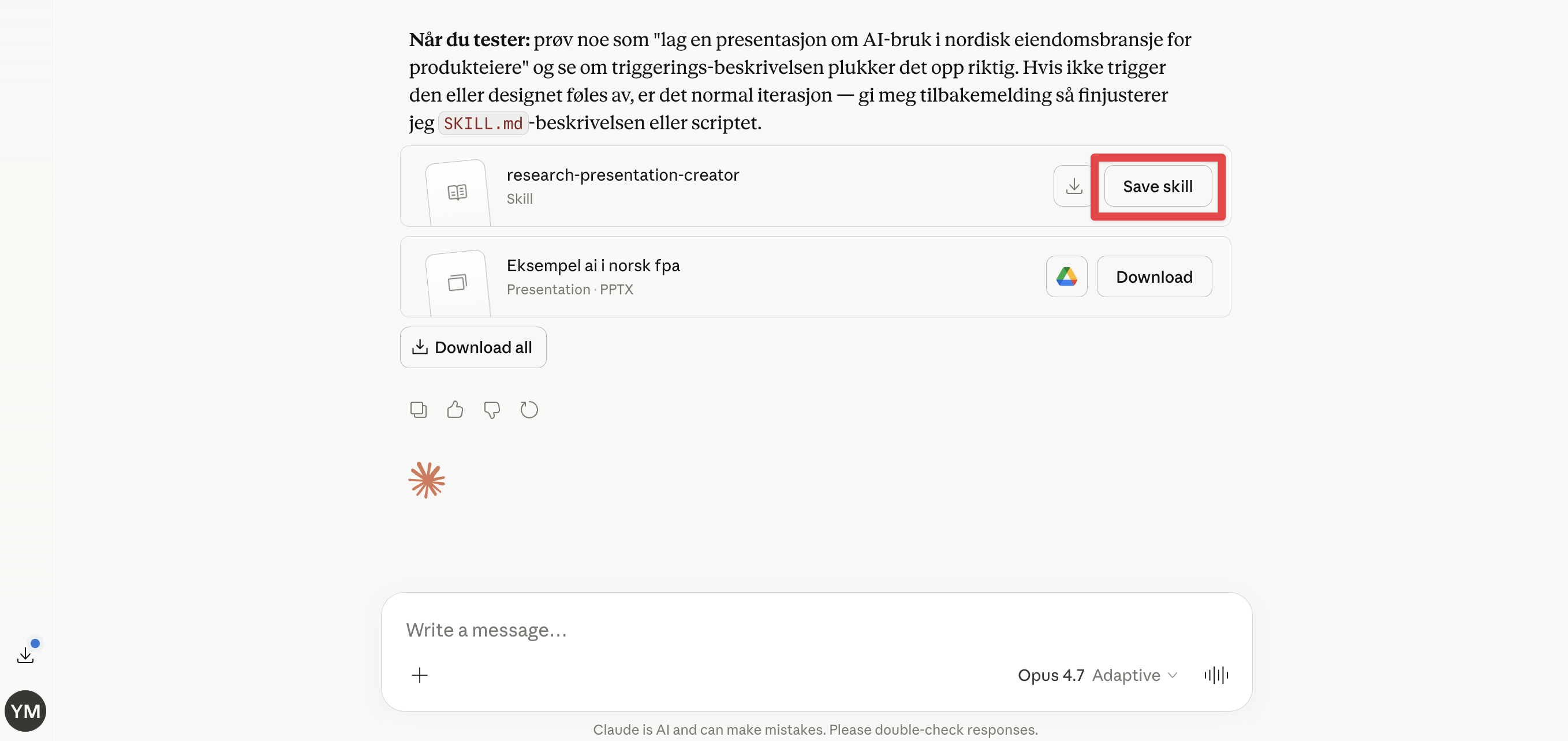
Hit enter. Claude will work for a bit and eventually ask you some follow-up questions. When it's done, you'll see an option like the one below. You can either download the Skill (to share with others, for example) or save it to Claude.
Click Save skill to save the Skill to Claude.
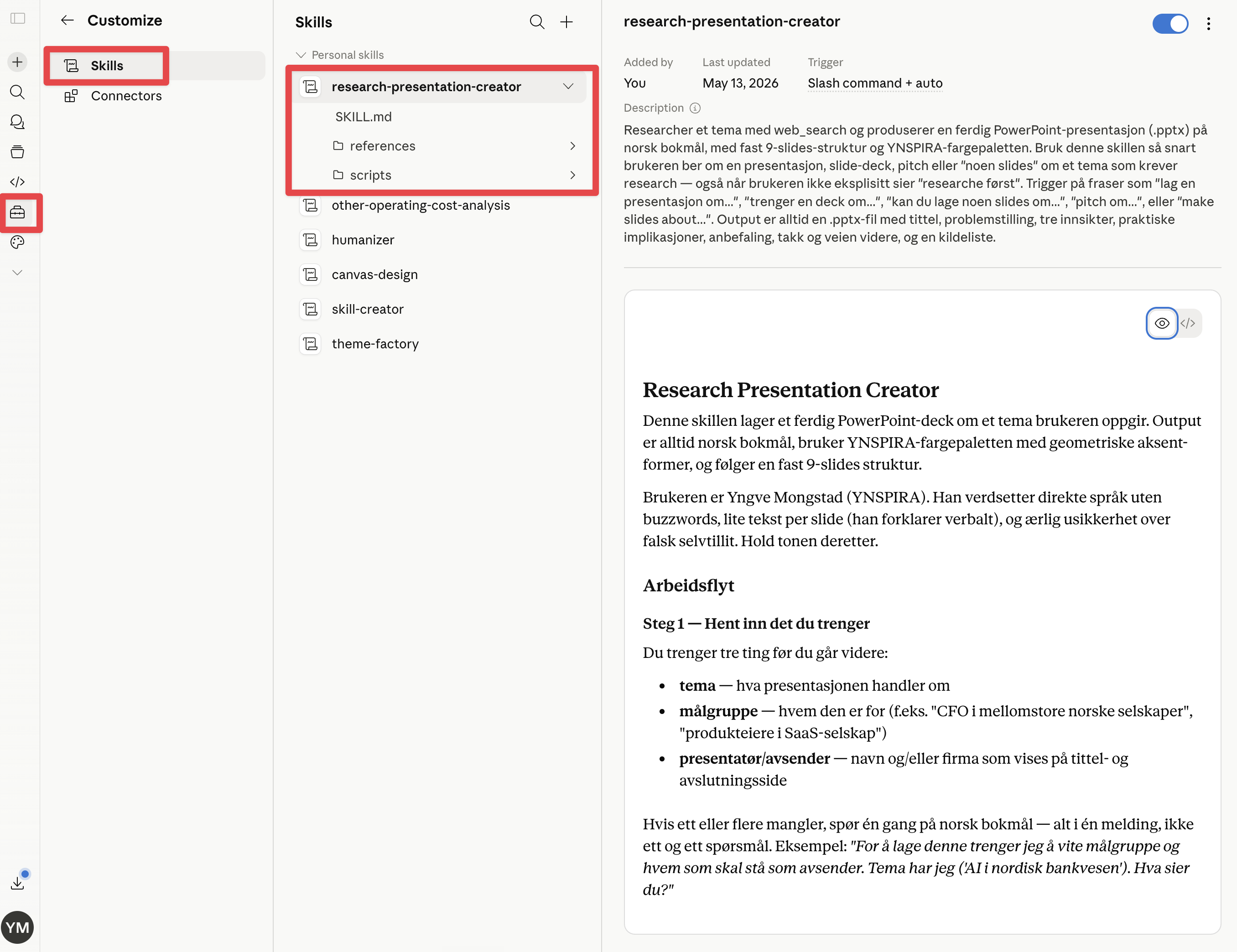
You'll find the new Skill by navigating to Customize → Skills → name of the new Skill.
Step 3: Test the new Skill
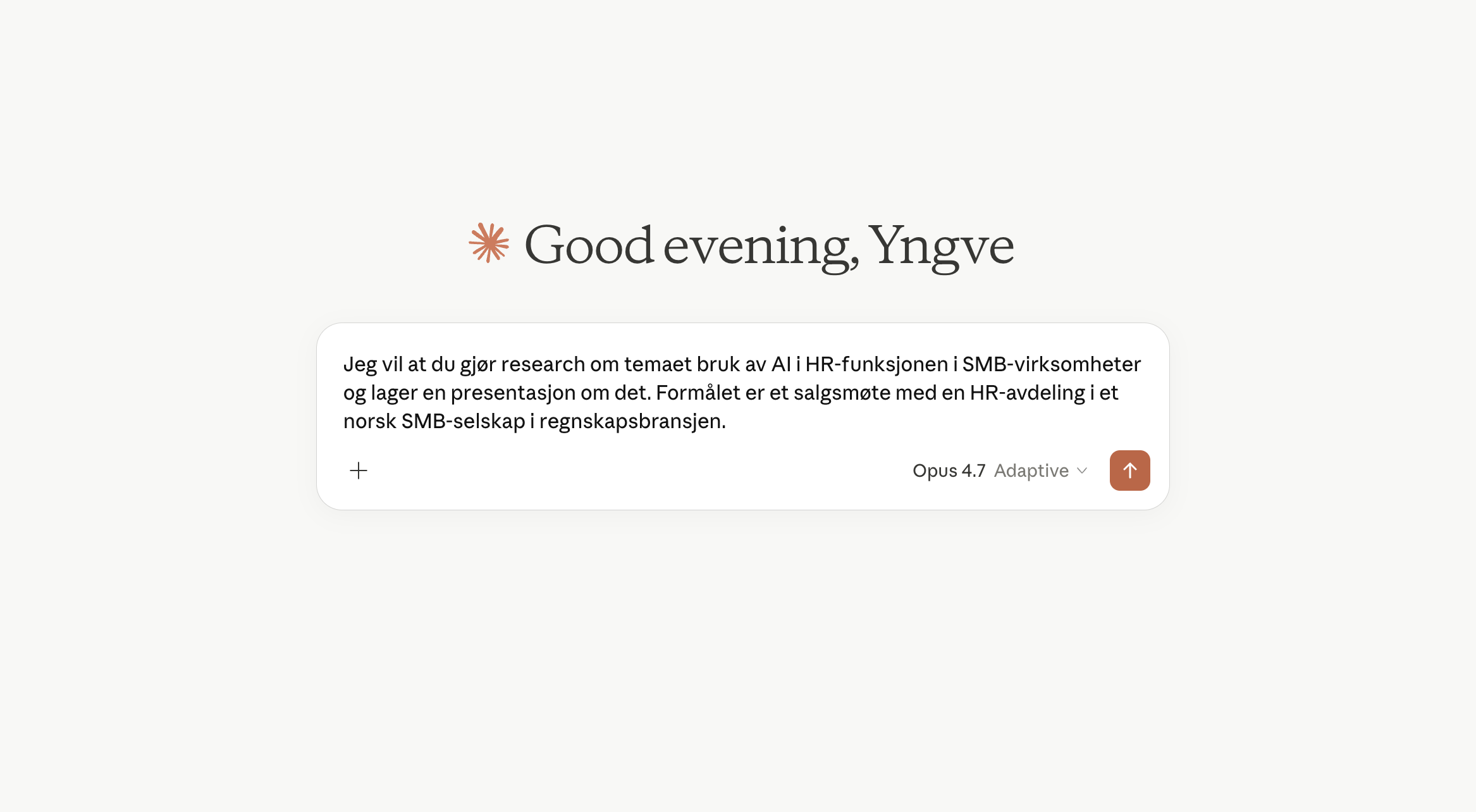
Test the new Skill by writing a prompt about a topic you want to research and get a presentation on. As an example, you can paste the prompt below. The new Skill will trigger automatically since it understands the context.
I want you to research the topic of AI use in HR functions at SMB companies, and create a presentation about it. The purpose is a sales meeting with an HR department at a Norwegian SMB in the accounting industry.
Claude will now pull in the Skill, follow the instructions, and start the work. When it's done, you'll see something similar, and you can download the PowerPoint presentation directly.
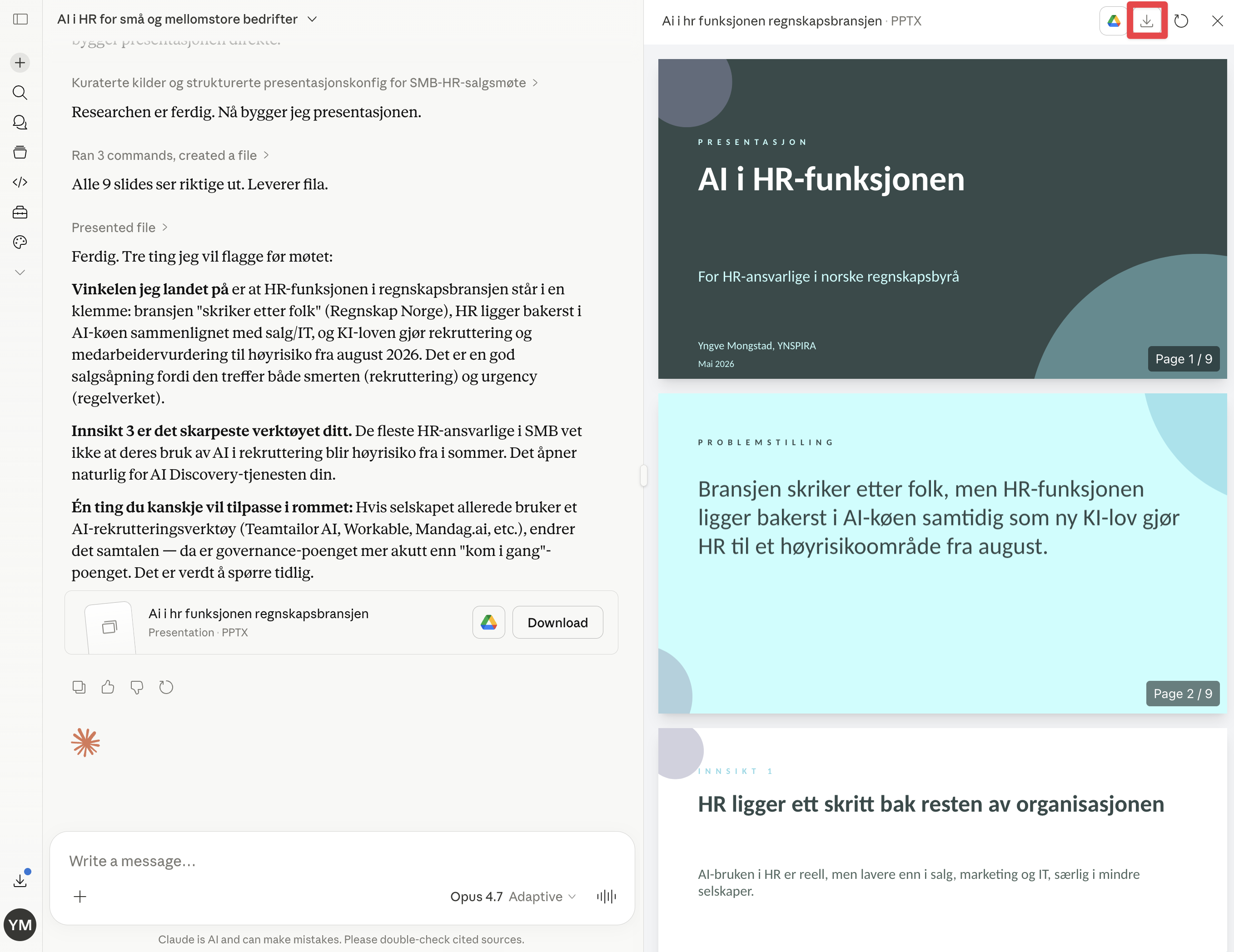
The design of the presentation in this example is quite basic, but remember that no guidelines or input were given beyond a screenshot of colors in this run. By uploading a template or an example of a good presentation, the Skill can be tuned to deliver output closer to what you actually want.
Step 4: Improve the Skill after 2-3 attempts
It's completely normal that the first version of the Skill isn't perfect. You'll notice that quickly after a few test runs. Maybe Claude writes too long, or too vaguely, gets things wrong, or doesn't trigger at all when it should.
You can adjust the Skill afterward by referring to it in a regular chat and asking for the changes you want, or you can navigate to the Skill and edit it from there: Customize → Skills → pick the Skill you want to change → click the menu in the top-right corner → Edit with Claude.
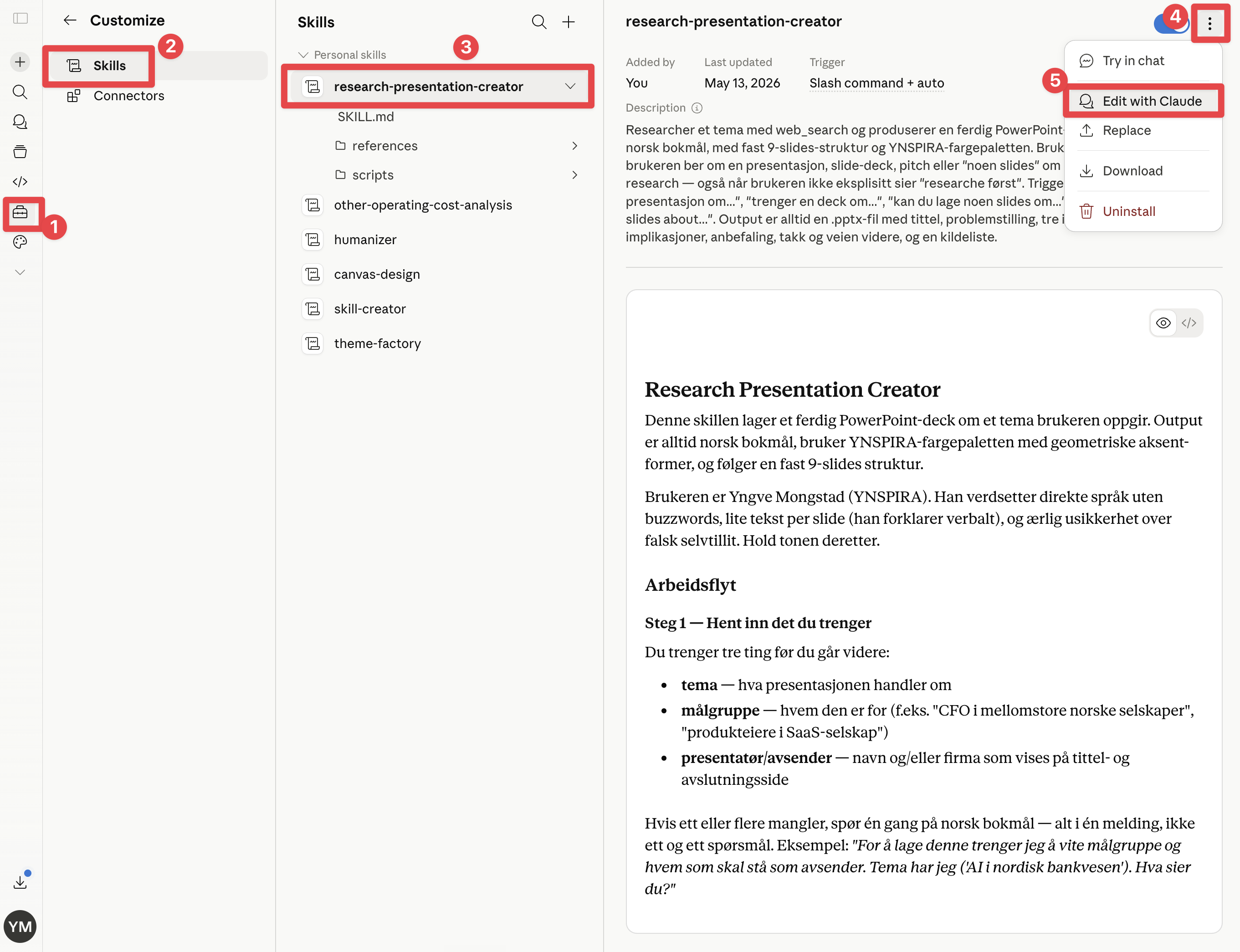
Write what you want to change in plain language and Claude will update the Skill for you. If you have a problem with the Skill and aren't sure how to fix it, ask Claude and it'll guide you.
How the Skill gets triggered
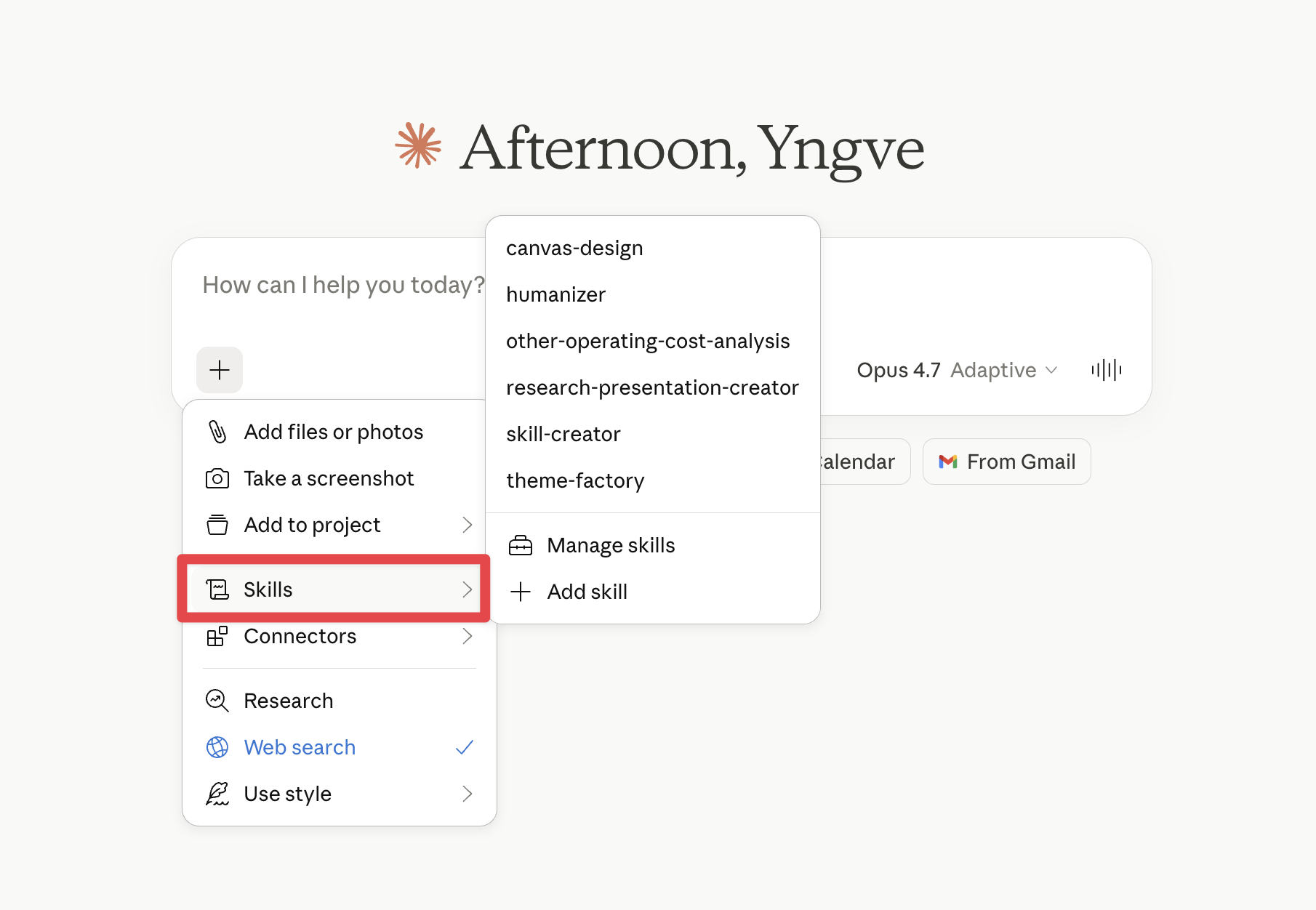
Skills can be triggered in three ways:
- Automatically, when Claude figures out which Skill to use based on your prompt
- Manually, by typing / and selecting the Skill
- Manually, by clicking + → Skills → pick the right Skill
Why a good description matters
Part of the point of Skills is that the Skill you need is only pulled in when you actually need it, so the context window doesn't get filled with every single Skill in every conversation. That would be both inefficient and expensive.
So how does Claude know which Skill to pull in if it doesn't have the actual content in the context window from the start? It happens because the description in the Skill is loaded at the start of a new conversation, so Claude knows which Skills are available and what they do.
That also means if the description is too vague, unclear, or too specific, the Skill might not trigger when it should, or it triggers too often. If you're having trouble with the Skill not triggering when it should, the description is the place to look.
Common mistakes
The Skill is too broad
"Help me with marketing" is too vague.
"Write LinkedIn posts of 600-800 characters with a target audience of leaders in the service industry in the SMB market, based on the style of the attached examples" is much better.
The clearer the task, the better the Skill.
The description is too vague
"Description" in the Skill has an important function: it's what Claude uses when a Skill gets pulled in automatically based on your prompt. So it's one of the most important parts of the Skill.
Bad:
description: Helps with meetings.
Better:
description: Creates meeting minutes from raw notes and transcripts, with decisions, action items, risks, and next steps.
Claude has to understand when the Skill should be used.
You put in too much
It's tempting to build a Skill that covers everything you do. Don't.
A Skill should ideally do one kind of work well.
If you have one Skill for meeting notes, one for project reports, and one for client emails, it's easier for Claude to pick the right one than if a single Skill tries to cover everything.
You're missing examples
Examples are often more useful than long explanations.
If you have a good past meeting summary, a good report, or a good email, drop it in as an example. Claude learns a lot from the format.
You don't test
A Skill isn't finished when it's uploaded. It's finished when it works on real input.
Test with two or three realistic examples. Adjust. Test again.
Security and privacy
Skills can contain instructions, files, and in some cases scripts. So you should be a bit critical, especially if you download Skills from others.
Some simple rules:
- Only use Skills from sources you trust.
- Open and read
SKILL.mdbefore installing anything. - Don't put API keys, passwords, or tokens in a Skill.
- Be extra careful with Skills that contain scripts.
- Don't include sensitive client data in examples unless you know it's allowed.
For most simple Skills you build yourself, the risk is low. A SKILL.md with instructions for meeting minutes isn't particularly dangerous. But Skills can get more advanced, and at that point you should treat them like small software packages: read before you run.
When Skills are overkill
You don't need to build Skills for everything.
Skills are overkill when:
- the task only needs to be done once
- a regular prompt works fine
- you don't yet know what format you want
- the task is too vague
- you really need access to an external system, not a work recipe
And don't start by building ten Skills. Start with one, to get a feel for how it works. Expand from there.
Pick a task you do often, build a simple Skill, test it, and improve it.
 Claude Chat
 Claude Cowork
 Claude Projects