 YNSPIRA
How to get 10x more out of Claude: From chat to working partner

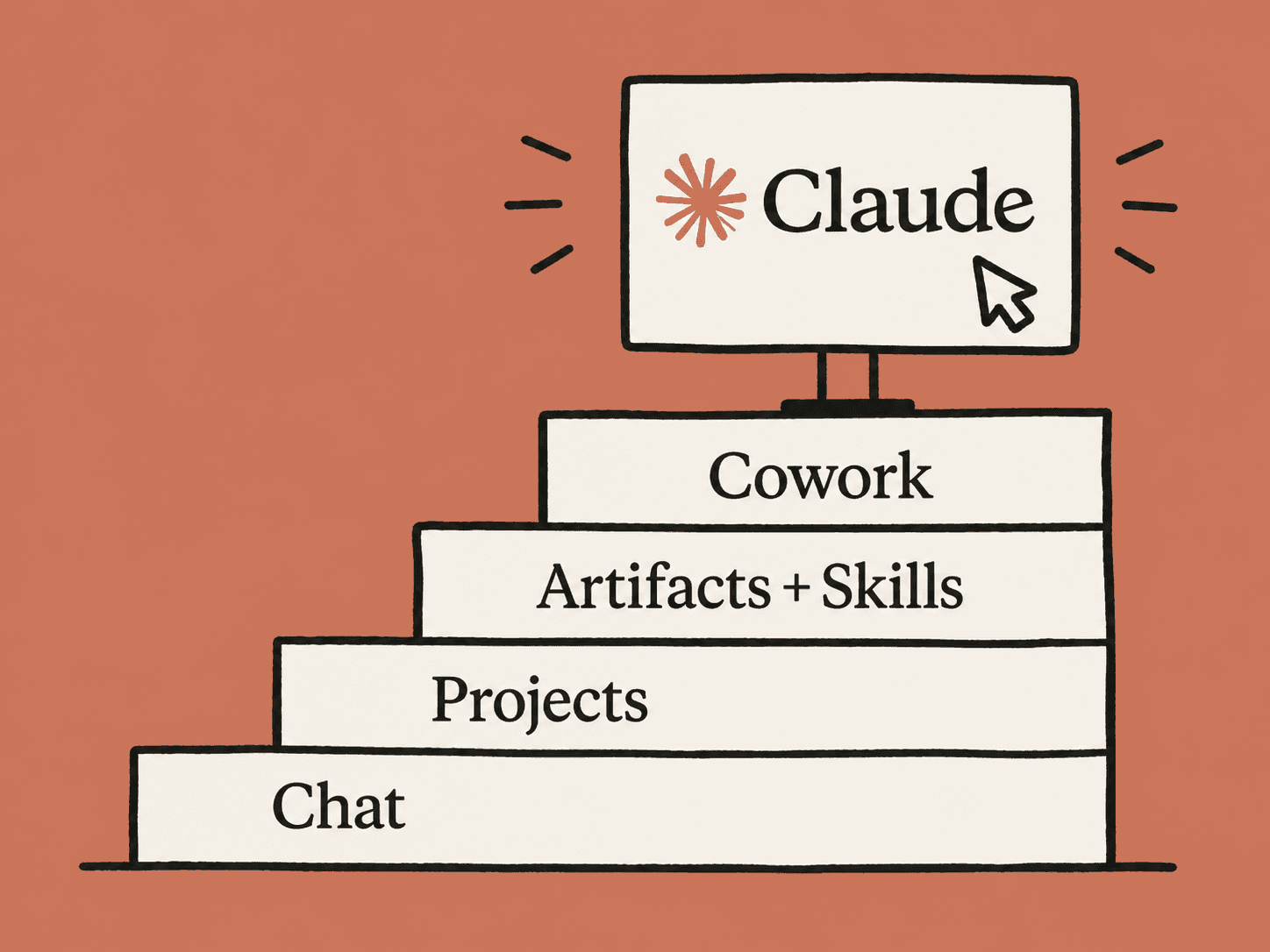
Most people use Claude like a slightly better Google. Here's what you're missing.
Most people who use Claude today ask a question, get an answer, and move on. Maybe they want help writing an email, explaining a concept, or summarising a document. That works fine. But it's a bit like buying a Swiss Army knife and only ever using the bottle opener.
Claude has grown from a chatbot into a platform with tools most people don't know exist. Projects, Artifacts, Skills, and Cowork are four features that change how you work. Not through better prompts, but through better systems.
This article walks you through the progression from regular chat to something that looks more like a working partner.
What power users do differently
There's a big gap between using Claude only for Q&A in the chat and doing something more with it. And it doesn't take more than a couple of hours to become a power user.
The progression looks roughly like this:
Level 1 - Chat. You type a question, you get an answer. Maybe you've got a Notion page with good prompts you paste in. Every conversation starts from zero. Claude knows nothing about who you are or what you're working on.
Level 2 - Projects. You give Claude lasting context, split across separate workspaces. Who you are, what you're working on, how you want things done for that specific area. Claude remembers between conversations. You don't have to explain from scratch every time.
Level 3 - Artifacts and Skills. You ask for things, not just text. Dashboards, calculators, prototypes. You teach Claude with Skills so it does tasks correctly every time without you having to repeat yourself.
Level 4 - Cowork. You delegate. Claude works on your files independently, builds reports, organises documents. You describe the result you want and do something else while Claude works.
Level 1: Better chat
Before you move on to the advanced features, it's worth getting better at the basics. Six things that make an immediate difference:
1. Give context, not just questions. "Write an email" gets you a generic email. "Write an email to the CFO about revenue dropping 12% this month, tone should be direct but constructive, and suggest three actions" gets you something you can actually use.
2. Ask Claude to ask you questions first. Type "ask me questions before you start." Claude will then clarify things you hadn't considered, and the result gets better.
3. Iterate instead of starting over. The first answer is rarely perfect. Say "make this shorter", "more concrete" or "focus more on point 2." Most people give up after the first attempt. Power users iterate 3-5 times.
4. Ask for the numbers behind the conclusions. Claude tends to give general summaries. Say "show me the numbers behind the conclusion" and you get substance instead of talk when you're doing analysis.
5. Tell Claude to be critical. Claude is naturally polite and agreeable. Say "challenge my reasoning" or "what are the weaknesses here?" if you want honest answers.
6. Turn on Extended Thinking. For complex tasks you can ask Claude to think step by step. It takes a bit longer, but the quality of analysis, strategy, and problem solving gets noticeably better. We recommend keeping Extended Thinking on by default.
Level 2: Projects — Claude that remembers
Projects solves the biggest problem with regular chat: that Claude starts from zero every time. Claude does have memory, but in regular chat it stays very general. With Projects, Claude becomes more like a team member for the specific project or area you're working on.
A project in Claude has three parts:
Instructions: Fixed rules Claude follows. Who you are, the tone you prefer for this project, the purpose of the project, what Claude should avoid, and so on. It helps to keep this short, concise, and concrete, ideally under 500 words.
Files: Documents, templates, reports, and reference material. Claude has access to all of this in every conversation inside the project.
Memory: Claude remembers things from earlier conversations in the project. Preferences, decisions, context.
Sharing: If you have a Team or Enterprise subscription, Projects can be shared with colleagues. They get access to instructions and files, but chats and memory stay personal.
Examples of projects you can set up
- Email and communication. Add your tone, examples of good emails you've written, and the people you usually write to. Claude matches your style.
- Reports and analysis. Add templates, KPI definitions, and methodology. Claude follows the format consistently.
- Writing. Add your writing style, examples, and guidelines. Every text Claude writes fits your voice.
- An actual project: use Projects for a real project you're running. Claude becomes the perfect project coordinator who remembers everything and helps with planning.
Make one project per recurring task type. Don't mix everything into one project.
Level 3a: Artifacts — Claude that builds things
Most people think of Claude as a tool that gives you text. Artifacts changes that. When Claude makes something more than text, say a calculator, a chart, a dashboard, or a prototype, it shows up in a separate panel with a live preview. That's Artifacts. You can test it, adjust it, and download it.
You don't need to know how to code.
Examples:
- Say "build a calculator for ROI on AI investment" and Claude builds an interactive calculator you can use right away
- Say "show the sales data as a bar chart" and you get a chart you can adjust
- Say "build a project dashboard with milestones and progress" and you get an interactive overview
- Drop in an Excel report and say "analyse the report and give me a dashboard with key findings and observations"
A few things to know: Artifacts uses more of your quota than regular chat. But it's almost always worth it.
Level 3b: Skills — teach Claude once
Skills is Claude's most underrated feature, and most people don't even know it exists. Once you've set it up, Skills will save you real time and give you real value. We can guarantee that.
The concept is simple: you write instructions for a task once, save them as a Skill, and Claude uses them automatically when they're relevant. Think of it as training a new colleague. You explain it once, and they remember it forever.
The difference between Projects and Skills: Projects is what Claude knows about you. Skills is how Claude works for you.
And it's very easy to do. There's already a Skill that creates Skills for you. You just say what it should do. Or even better, ask Claude to make a Skill from a finished result you're already happy with.
Examples of Skills you can create
You can build a "tone of voice" Skill, either a general one or specific ones, say one for LinkedIn posts and another for more formal emails. Use the Skill when you write text and Claude matches the tone automatically.
Another example: you've spent time getting the perfect dashboard based on an Excel report. Make a Skill based on that work, and next time you get updated data, you can use the Skill to get exactly the same dashboard without long prompting sessions.
Other places Skills are useful: weekly reports with a fixed format, article quality checks, competitor analyses, or presentation prep.
Creating a Skill isn't hard. There's a Skill for creating Skills, which makes it easy to get started.
Level 4: Cowork — Claude that works on its own
Cowork is the big jump. Instead of going back and forth in a chat, you give Claude an assignment and let it work independently.
You could, for example, open Cowork before lunch and spend a few minutes handing Cowork some tasks. When you come back from lunch, the work is done on your PC: emails reviewed, draft presentation created, Notion updated with the latest status, Downloads folder cleaned up, and a research report ready as interactive HTML.
The key thing is that Cowork doesn't just give you text in a chat window. It writes straight into your folders. Ask for a presentation, and you get a PowerPoint file. Ask for a financial model, and you get a spreadsheet back.
With "Dispatch" (launched March 2026) you can even send tasks from your phone. You're sitting in a meeting, remember you need a report, pick up the phone, and type the task. Claude works on the desktop at home. By the time you're back, the report is ready.
Be realistic about Cowork
Cowork is impressive, but it wasn't long ago that it was still research preview. Simple tasks like finding files and summarising documents worked well, same with creating new files, and integration with other apps that have a Claude connector. More complex things like interacting with other apps via "computer use" can be unreliable.
The usage limits are another issue. Cowork uses more tokens than regular chat, which means a Pro plan can get "used up" quickly.
Start with simple tasks you can verify fast. Don't put Cowork on anything business critical that you don't have time to check.
To use Cowork your computer has to be on and Claude Desktop has to be open.
You can find a complete guide to getting started with Cowork here.
What about ChatGPT and Gemini?
Claude isn't the only option, and it isn't the best at everything. Here's the honest picture:
Pick Claude for: Writing, analysis, coding, and tasks where the AI has to follow detailed instructions. Projects, Skills, and Cowork form an ecosystem that's stronger for people who want to build systems around their AI use.
Pick ChatGPT for: Image generation, the broadest set of features, and tasks where you need a little of everything. ChatGPT also has more generous usage limits on the $20 plan.
Pick Gemini for: Google Workspace integration, video and audio analysis, and situations where you already live in Google's ecosystem.
Plenty of people who use AI daily pay for two subscriptions and use them for different things. There's nothing wrong with that. The point isn't that one tool is best, it's that you use each tool where it's strongest.
Three things you can do tomorrow
You don't need to do everything at once. Here are three steps that give you the most effect quickest:
1. Set up a Project. Pick the task you do most often. Write 5-10 lines of instructions: who you are, what you want to avoid, how you want the output. Upload the relevant files. You'll feel the difference straight away.
2. Try Artifacts. Ask Claude to build something visual. A calculator, a chart, a prototype. It takes 30 seconds and shows you a whole new side of the tool.
3. Build your first Skill. Think of a task you keep explaining to Claude. Write the instructions down, save as a Skill. Next time you won't have to explain.
The progression from chat to working partner doesn't take weeks, but it does take an afternoon. And the difference is big enough that you'll wonder why you didn't do it sooner.
 Claude Chat
 Claude Code
 Claude Cowork
 Claude Projects